Netfly is one of the most practical apps for watching channels on an Android phone, especially if you want different quality options and a simple setup. If you are looking for a phone-only solution, this guide walks through the exact installation method using the Downloader app, the two available versions, and what to expect during setup.
The important detail here is simple: this version of Netfly is intended for phones only, not TV screens. There are two app versions to try, both installed through Downloader codes, and both lead to a MediaFire download page.
Table of Contents
- 📱 What makes Netfly useful on a phone?
- ⬇️ Start with the Downloader app
- 🔢 Netfly version 1 Downloader code
- 🛠️ Netfly version 2 Downloader code
- ⚠️ Important note: this Netfly setup is for phones, not TVs
- 🎥 What you can expect from Netfly
- ✅ Installation steps at a glance
- ❓FAQ
- 📌 Final note
📱 What makes Netfly useful on a phone?
The main appeal of Netfly is straightforward. It is presented as a strong option for watching channels on mobile with multiple streaming qualities, including high quality in the unlocked versions mentioned here.
If your goal is to use a lightweight app on your phone rather than a television interface, this is where Netfly fits best. The setup is aimed at Android phones, and the two builds shared here are both described as mobile-friendly versions.
For anyone who regularly installs apps outside the Play Store, a tool like Professional Apps – best app android tv can also be useful as a general reference point for app discovery, though the installation method below is specifically about Netfly on mobile.
⬇️ Start with the Downloader app
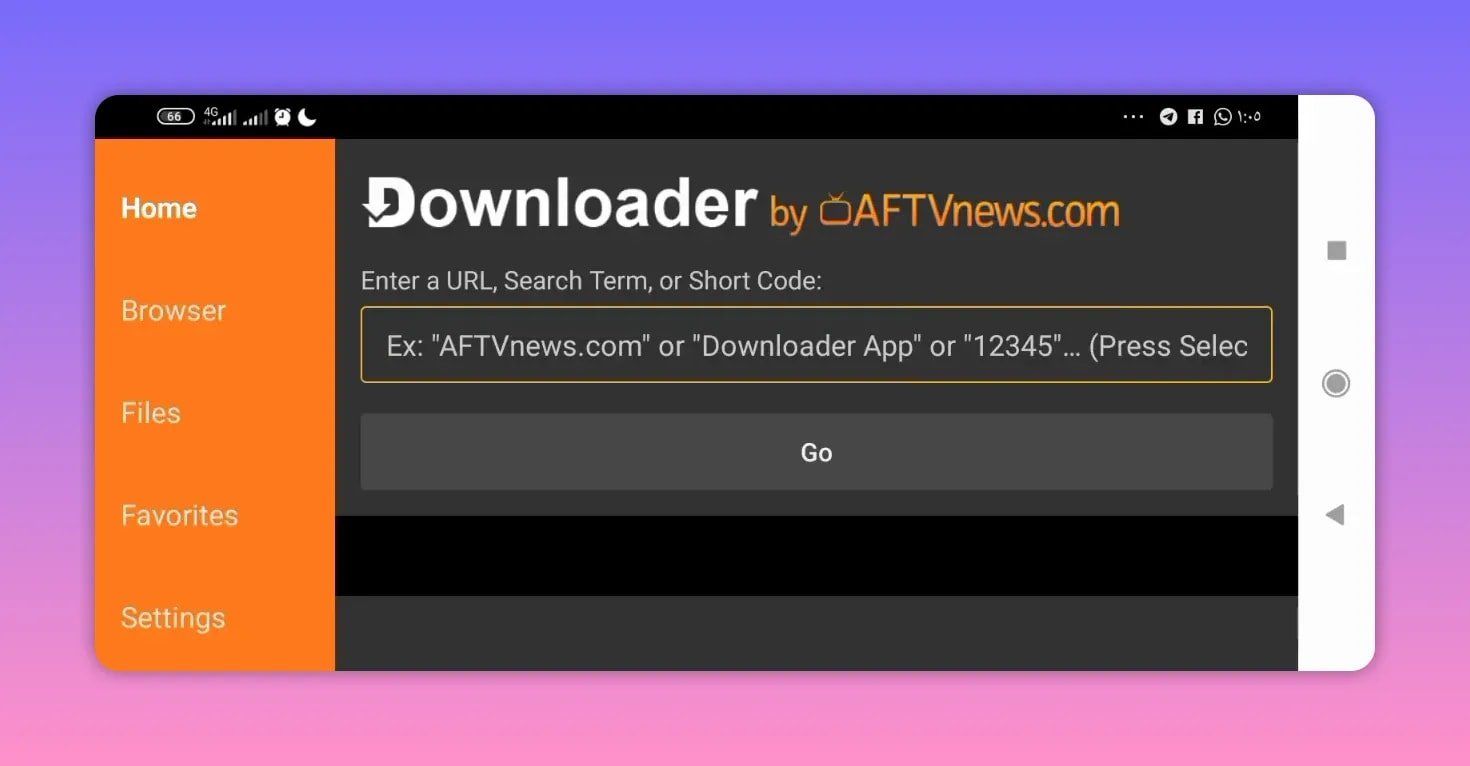
Before installing Netfly, you need the Downloader app. It is available on the Google Play Store, so the first step is easy:
- Open Google Play Store.
- Search for Downloader.
- Install it.
- Open the app and grant the permissions it asks for so downloads can work properly.
If you have never used Downloader before, it is commonly used to fetch APK files through short numeric codes or direct links. You can learn more about Android app distribution and security from Google Play’s official Android app guidance and Android installation basics through Android developer documentation.
Once Downloader is installed and ready, you can move on to one of the two Netfly versions.
🔢 Netfly version 1 Downloader code
The first version uses this Downloader code:
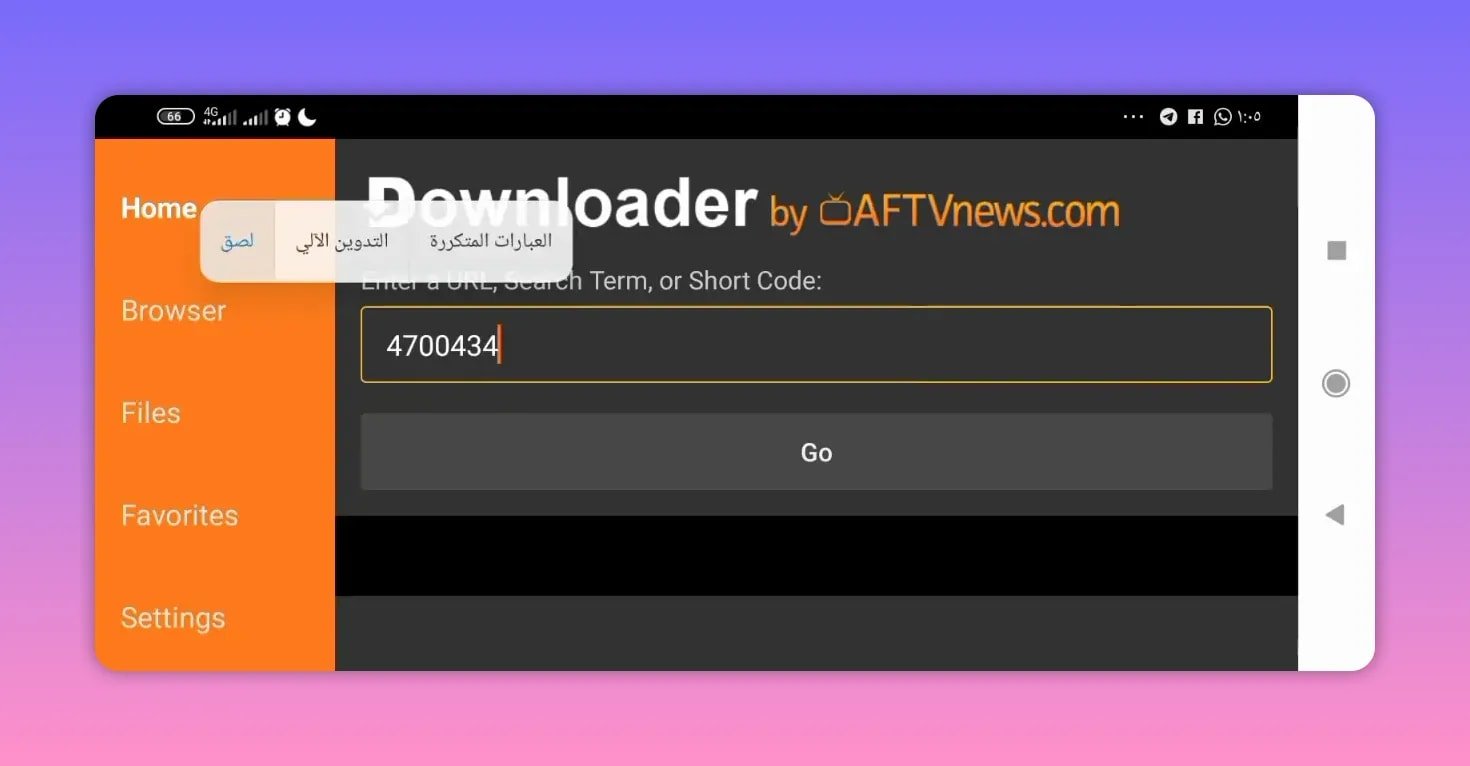
- 4700434
To install it:
- Open Downloader.
- Go to the search or URL field.
- Enter 4700434.
- Press Go.
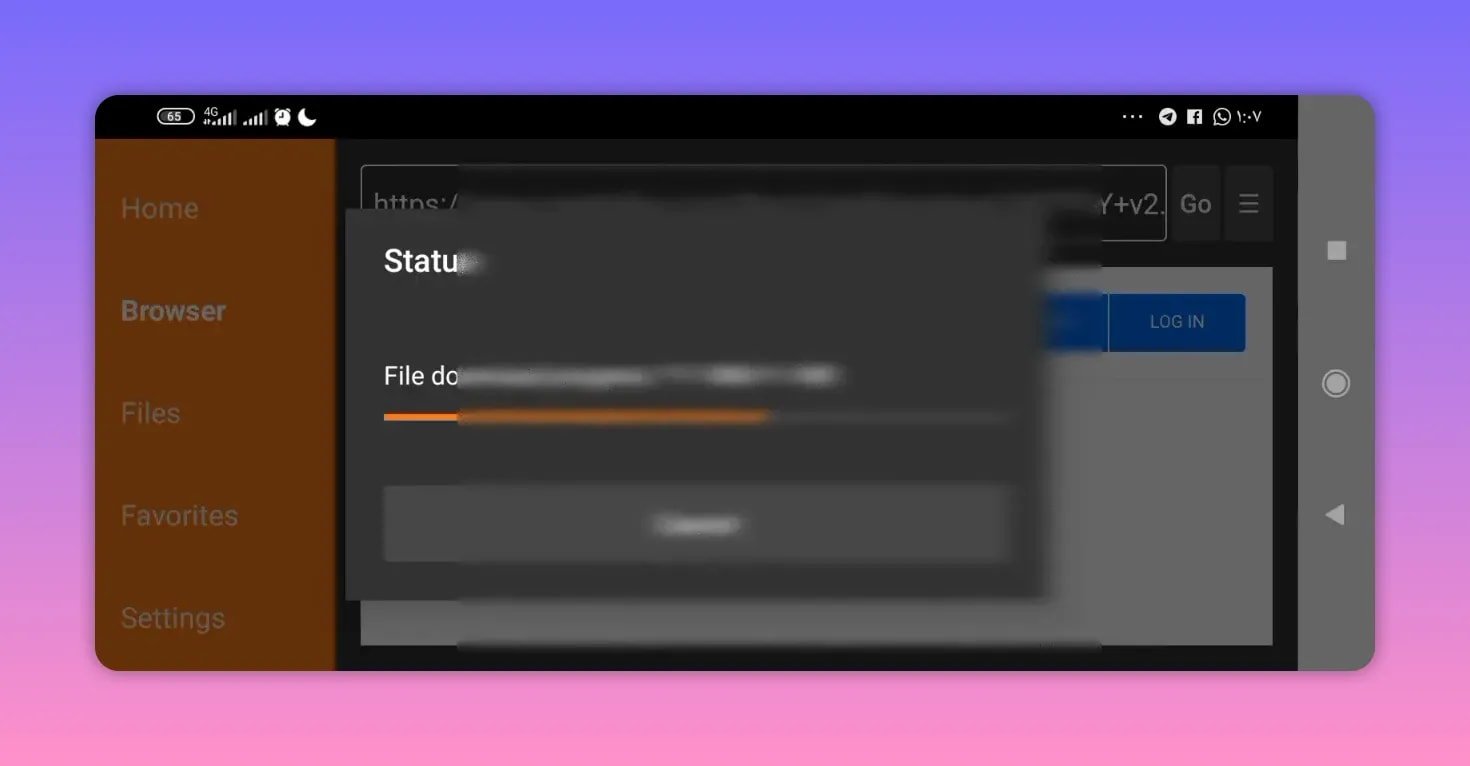
This should redirect you to a MediaFire page. From there, tap the app name to begin the download.
After that, the APK should start downloading automatically. When installation begins, Android may show a warning saying the app could be harmful. If that happens, the method shown here is to:
- Tap More details.
- Choose Install anyway.
The reason given for feeling more comfortable with this version is that the app does not ask for extra permissions. That does not replace normal caution, of course, but it is part of why this release is presented as a solid mobile option.
🛠️ Netfly version 2 Downloader code
If the first release is not your favorite, there is a second version of Netfly to test. The shared Downloader code is:
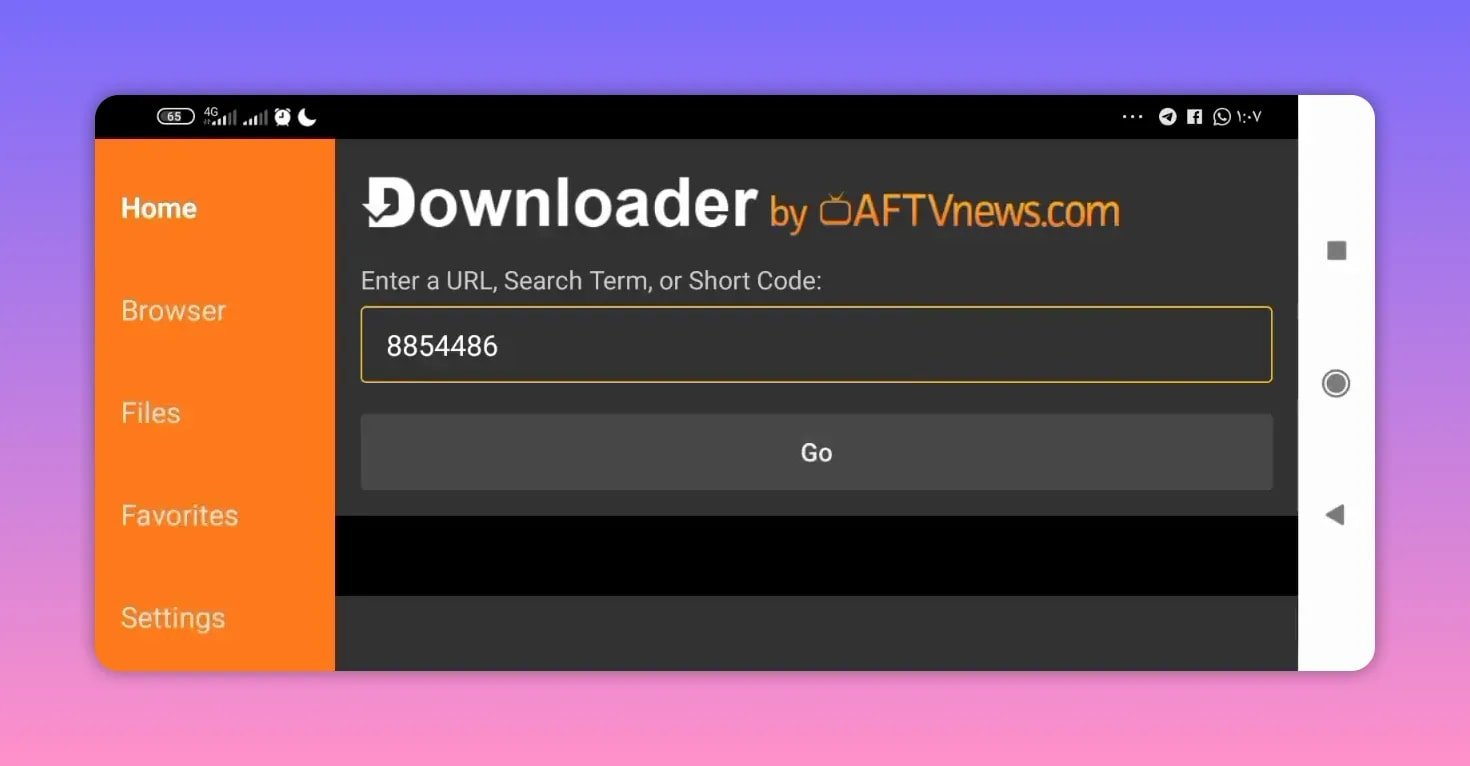
- 8854486
The installation process is almost identical:
- Open Downloader.
- Type 8854486 into the search field.
- Press Go.
- Wait for the redirect to the MediaFire page.
- Scroll down if needed and tap the app name.
- Download and install the APK.
This second Netfly version is also described as unlocked for high-quality playback. Since the two builds are separate, the practical advice is simple: install the one that works better on your device, or test both and keep the version you prefer.
⚠️ Important note: this Netfly setup is for phones, not TVs
This point matters and should not be skipped. The versions shared here are not meant for television screens. They are specifically presented as suitable for Android phones.
So if you are trying to install Netfly on a smart TV, Android TV box, or another large-screen setup, this particular method is not the one to rely on.
That distinction is helpful because many apps have different builds for mobile and TV. A version that works smoothly on a phone may not be optimized for remote navigation, TV resolution, or landscape interface behavior.
🎥 What you can expect from Netfly
Based on the shared setup, Netfly is positioned as a strong all-around app for channel streaming on mobile. The key points highlighted are:
- Works on phones
- Supports different streaming qualities
- Includes high-quality playback in these versions
- Offers broad channel access
- Lets you compare two versions and keep the one you like more
The overall message is clear: if you want a practical mobile app for watching channels in good quality, Netfly is worth trying in both available builds.
✅ Installation steps at a glance
If you want the short version, here is the full process from start to finish:
- Install Downloader from Google Play.
- Grant the required permissions.
- Enter one of these codes:
- 4700434 for version 1
- 8854486 for version 2
- Press Go.
- On the MediaFire page, tap the app name.
- Wait for the APK to download.
- If Android shows a warning, open More details and continue with installation if you are comfortable doing so.
- Open Netfly and test the version that works best for your phone.
❓FAQ
What is the first Downloader code for Netfly?
The first Netfly Downloader code is 4700434.
What is the second Downloader code for Netfly?
The second Netfly Downloader code is 8854486.
Is Netfly in this guide made for TV screens?
No. The versions explained here are specifically for phones and are not intended for TV screens.
Where do the Netfly codes redirect for download?
Both Downloader codes redirect to a MediaFire page where you tap the app name to begin downloading the APK.
What should I do if Android says the app may be harmful?
The method shown here is to tap More details and then continue installation if you trust the source and want to proceed. Always use normal caution when installing APK files outside the Play Store.
Which Netfly version should I install?
Try both versions if needed. Since there are two builds, the practical choice is to keep the one that performs better on your phone and matches your preference.
📌 Final note
If you want a simple mobile setup for channel streaming, Netfly stands out here because it offers two installable versions, high-quality playback, and a straightforward Downloader-based installation method. The key is to remember that this setup is focused on Android phones only. Install the version you prefer, test stability and quality on your device, and keep the build that works best.