If you use an Android TV, TV Box, or even an Android phone, there is a simple way to add a powerful app library that gives you quick access to entertainment apps, live sports apps, media tools, and useful players all in one place.
The setup is not difficult, but it does need to be done in the right order. If you skip permissions or use an outdated version of Downloader, things may not work properly. So the safest approach is to go step by step, install Unlinked correctly, and then add working library codes inside it.
Table of Contents
- 📥 Step 1: Install Downloader from Google Play
- ⚙️ Step 2: Enable installs from unknown sources
- 🔗 Step 3: Install Unlinked using Downloader code 968517
- 🏠 Step 4: Add Unlinked to the home screen and grant its permission
- 🗂️ Step 5: Add your first Unlinked library code
- ⬇️ How to install an app from inside Unlinked
- 🎁 Bonus: Add a second Unlinked library with the code FIRESTICK
- 🧠 Tips for getting the most out of Unlinked
- ❗ Important reminder about free apps
- ❓FAQ
📥 Step 1: Install Downloader from Google Play
The first thing you need is the Downloader app. This is the tool used to fetch and install Unlinked on your device.
Open Google Play Store, go to search, and type Downloader. Once it appears in the results, select it and install it.
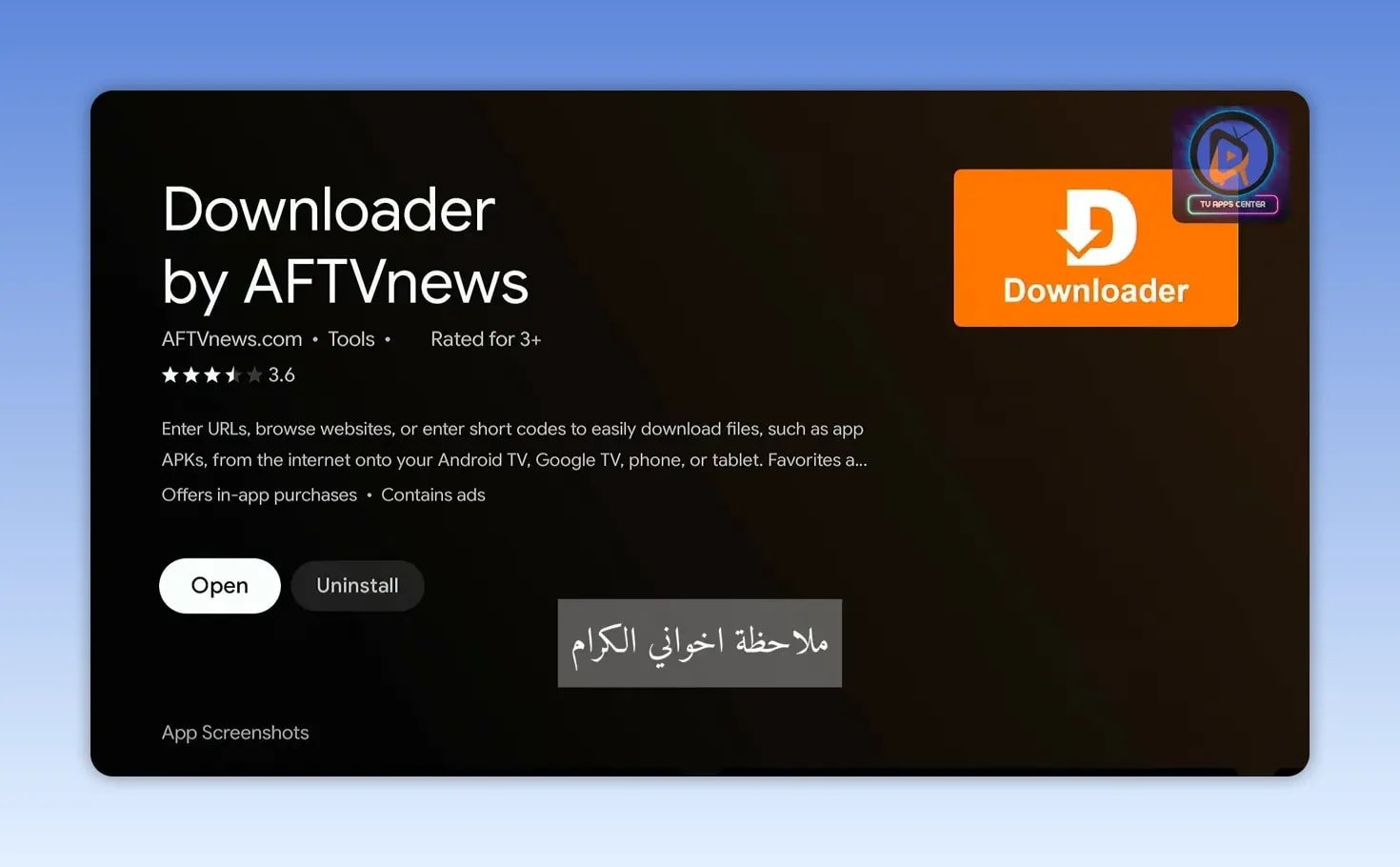
One important note here: if you already have an older version of Downloader installed, remove it and install the latest version again. There was an update, and using the newest build helps everything run more smoothly.
⚙️ Step 2: Enable installs from unknown sources
After Downloader is installed, it still needs permission to install APK files.
On Android TV, go through this path:
- Settings
- Device Preferences
- Security & restrictions
- Unknown sources or Install unknown apps
From there, find Downloader and turn permission on.
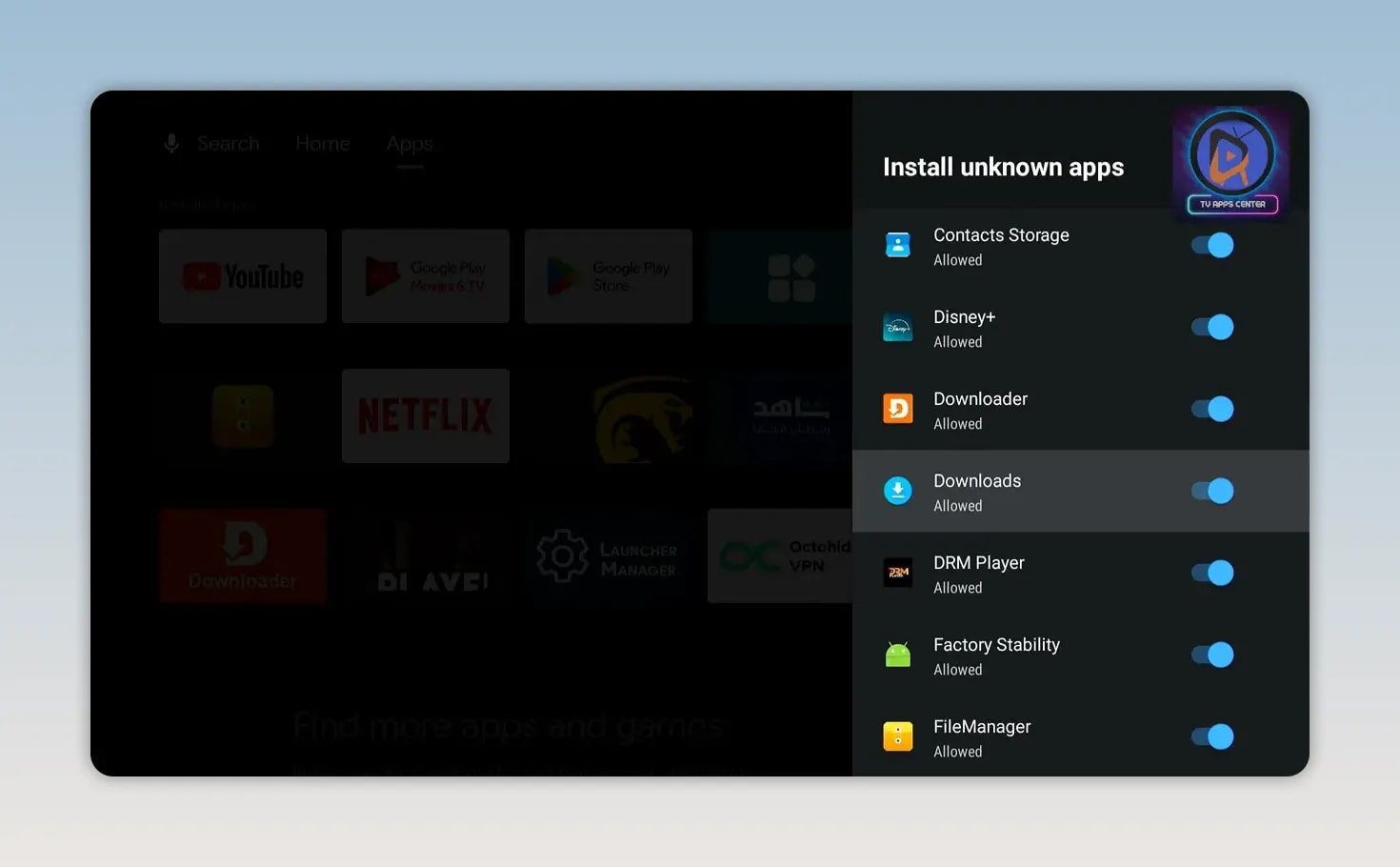
Once that is done, return to the home screen.
🔗 Step 3: Install Unlinked using Downloader code 968517
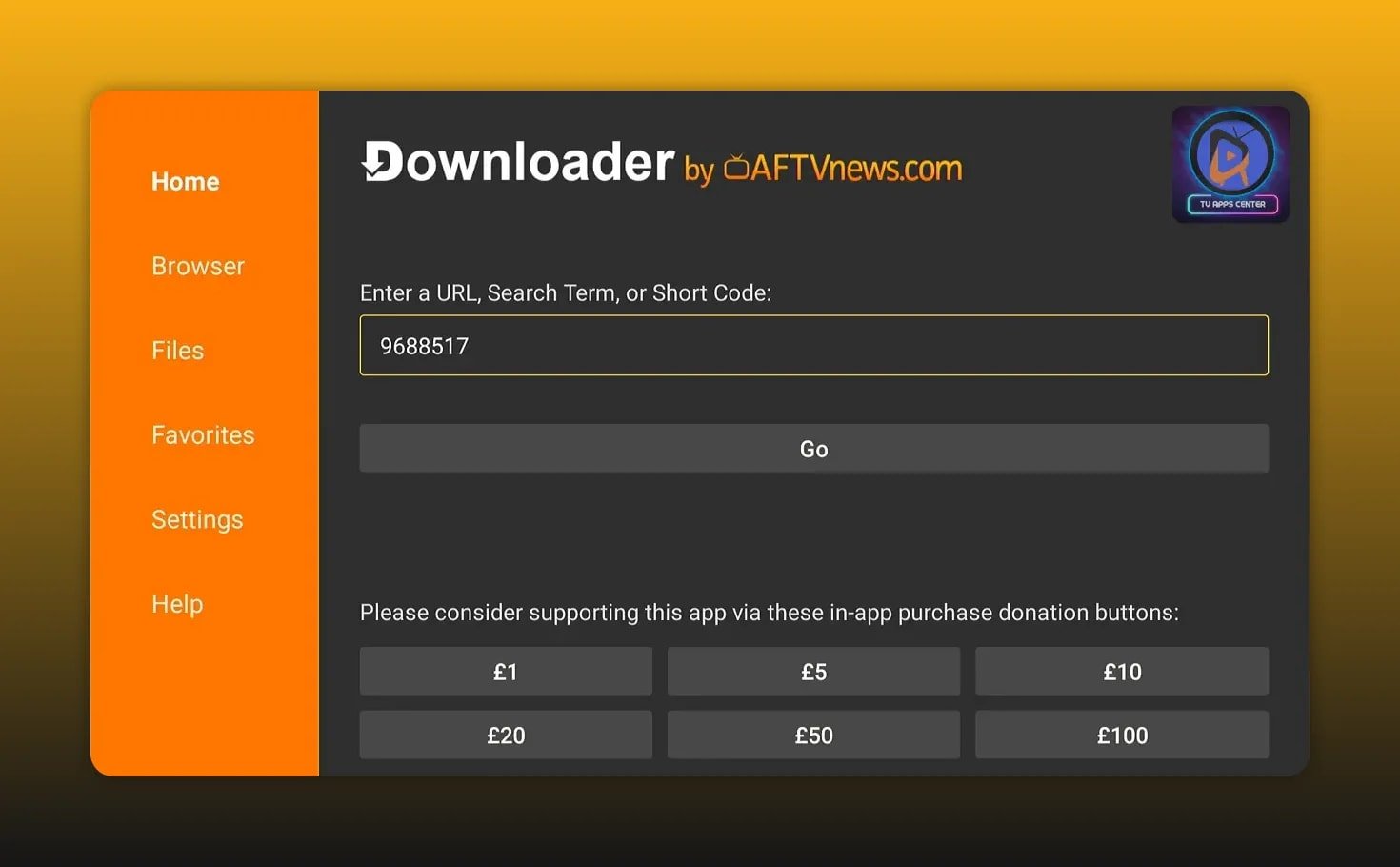
Now open Downloader and enter this code:
- 968517
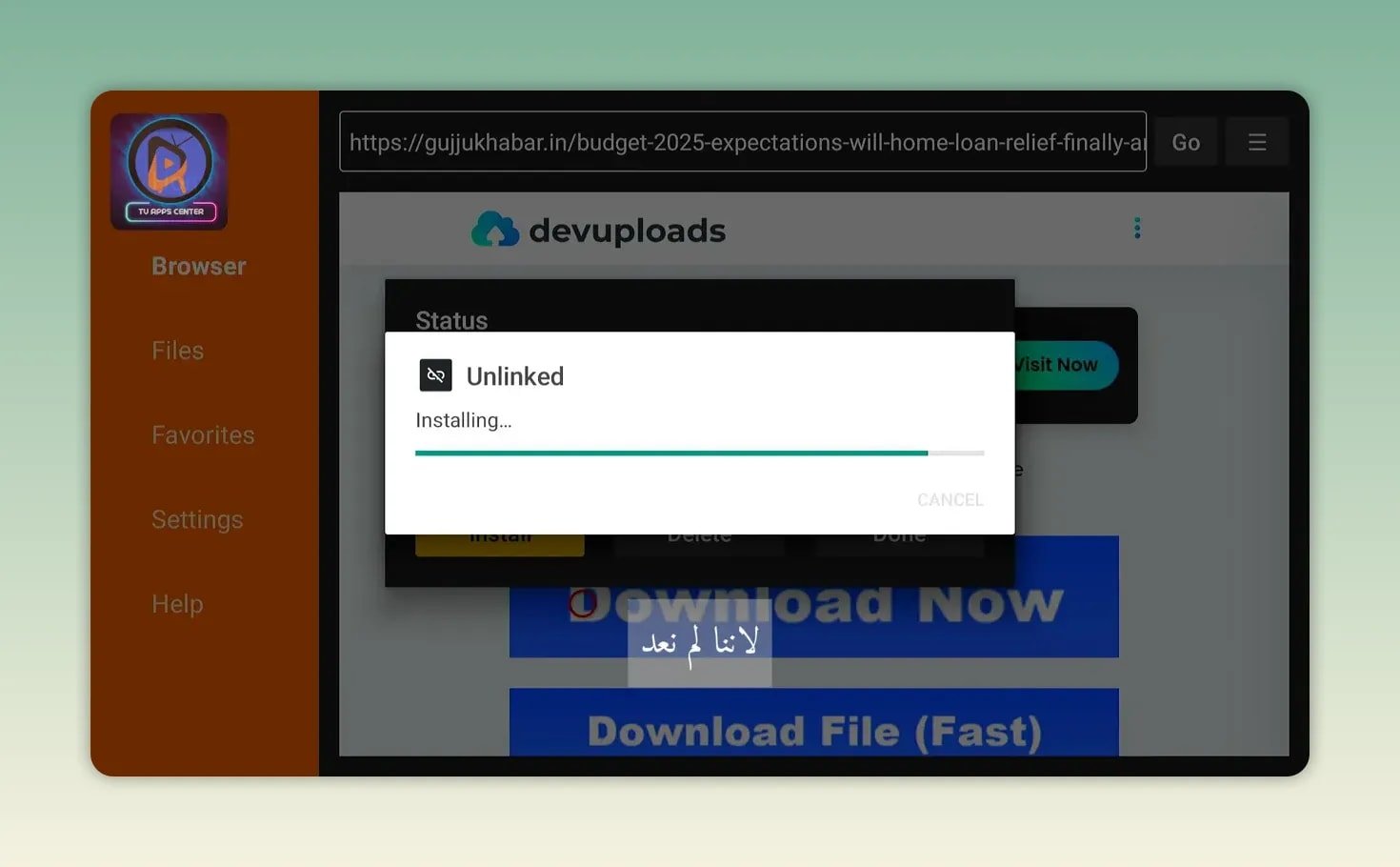
Press Go. This opens a redirect page, then takes you to the download page for the Unlinked APK.
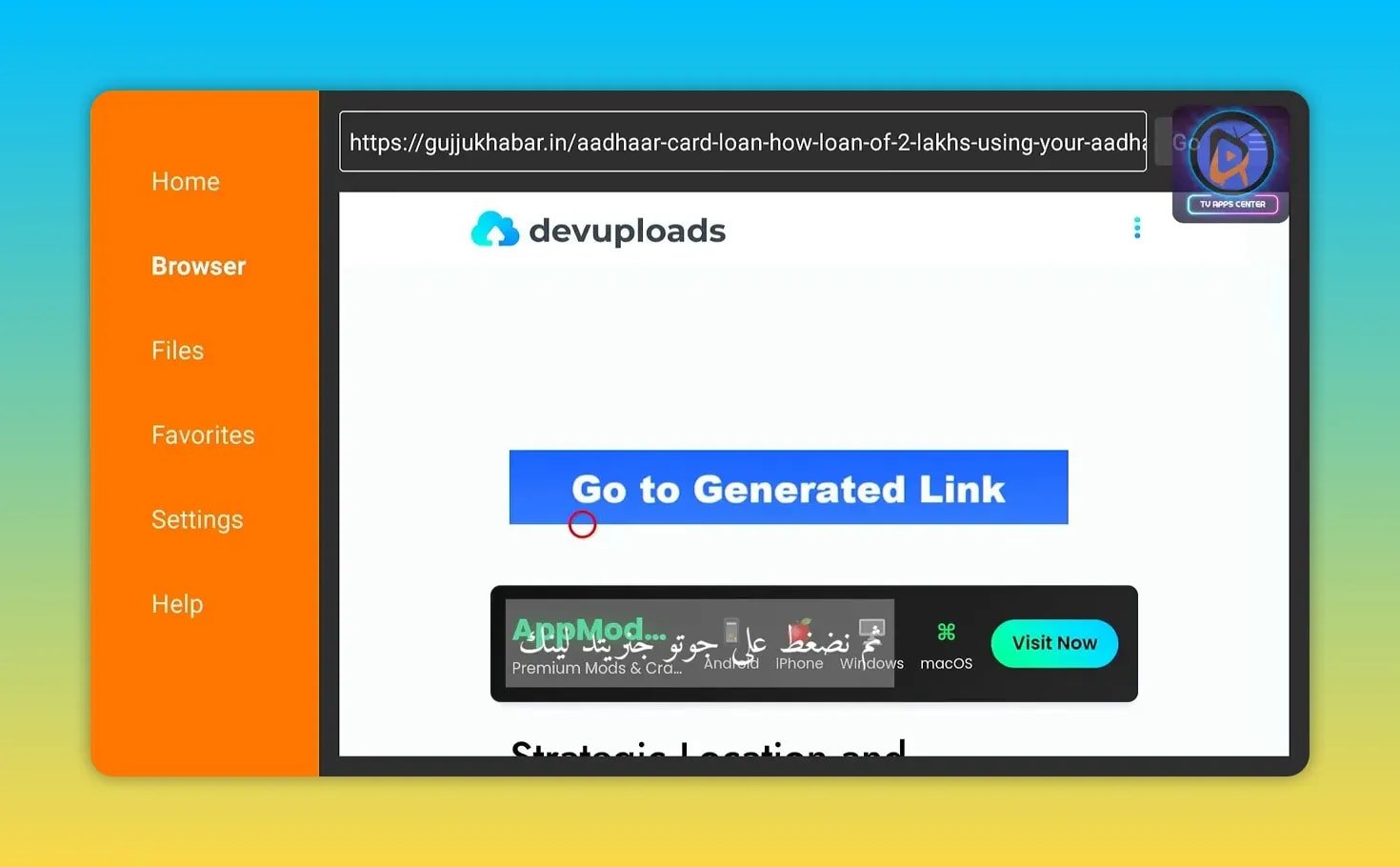
After the page loads, wait a few seconds for the redirect to complete. Then scroll a little until you see the blue button used to generate the download link. Press it, wait briefly, then choose the generated link and continue down to Download Now.
When the file finishes downloading, choose Install. After installation is complete, press Done instead of opening it immediately. Then delete the APK file because you no longer need it and it only takes up storage space.
🏠 Step 4: Add Unlinked to the home screen and grant its permission
After installing Unlinked, add it to the main launcher row so you can reach it quickly. Open your apps list, find Unlinked, and move it where you want on the home screen.
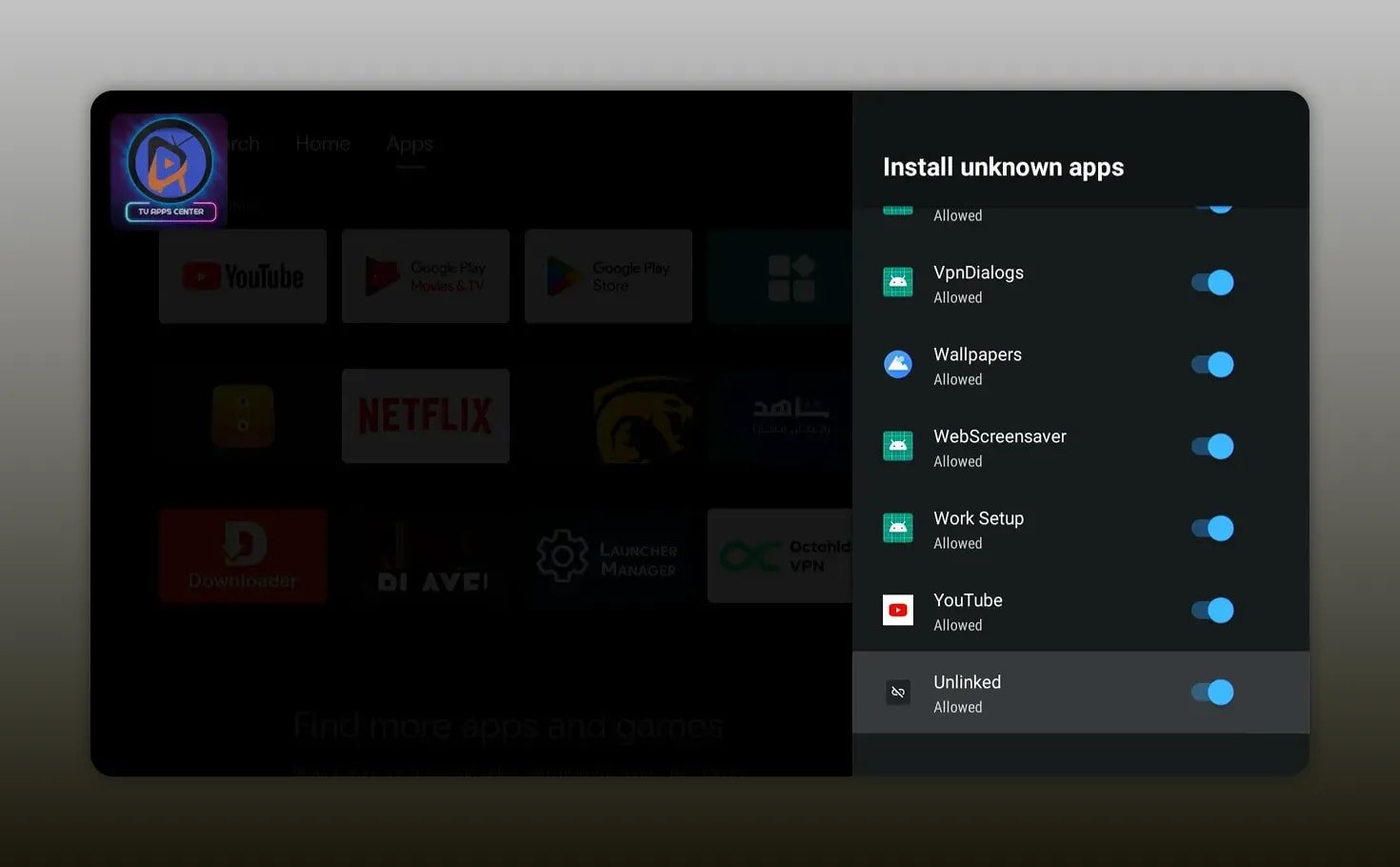
Then give Unlinked the same install permission you gave Downloader earlier. This matters because Unlinked is not just a library browser. It also installs APK files from inside the app, so Android needs to trust it the same way.
Go back to:
- Settings
- Device Preferences
- Security & restrictions
- Install unknown apps
Then switch Unlinked on.
🗂️ Step 5: Add your first Unlinked library code
When you open Unlinked for the first time, the interface is very simple. You will see an option to add a new library. That is where the real value starts.
Select New Library and enter this code exactly:
- emdyoutube
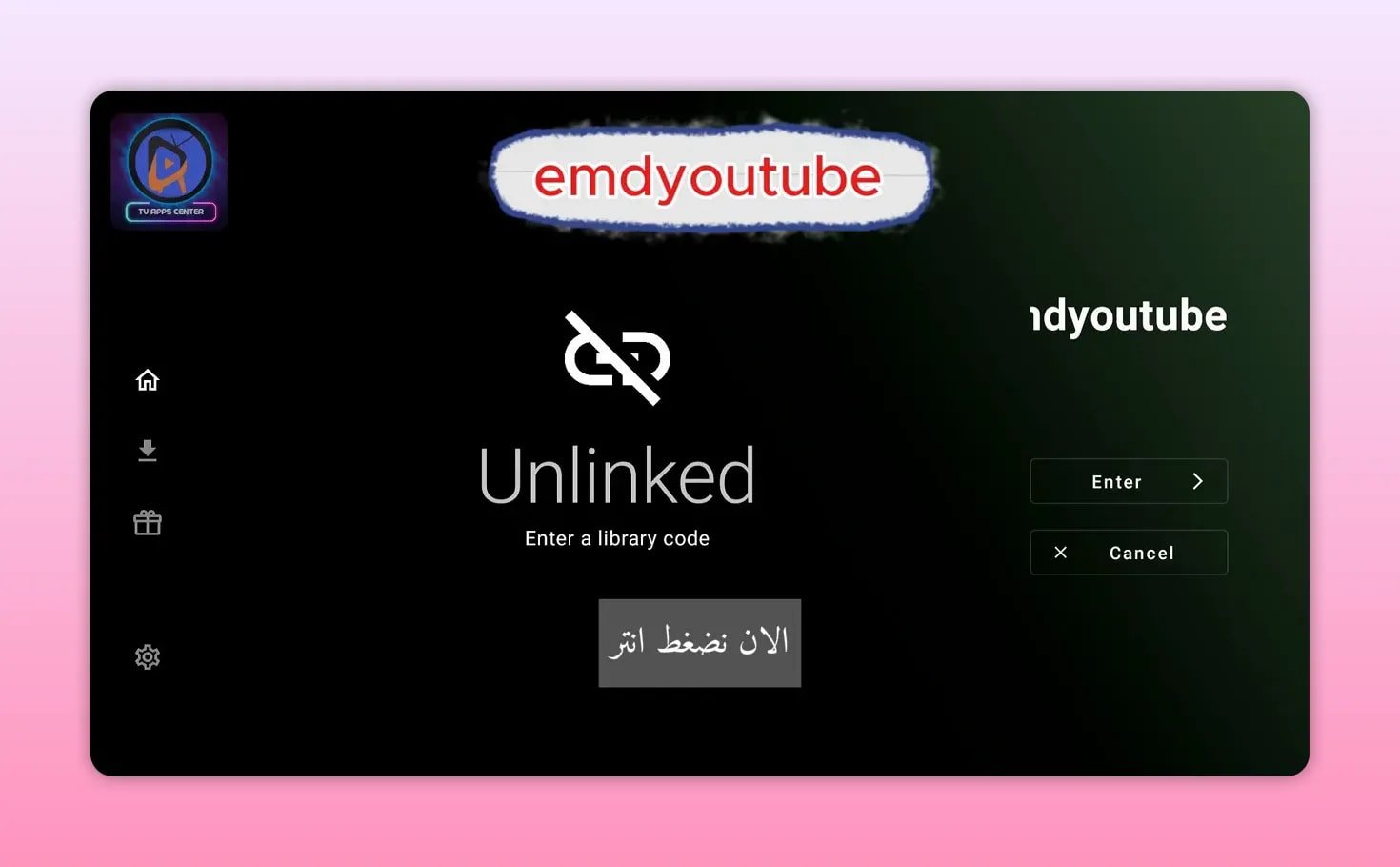
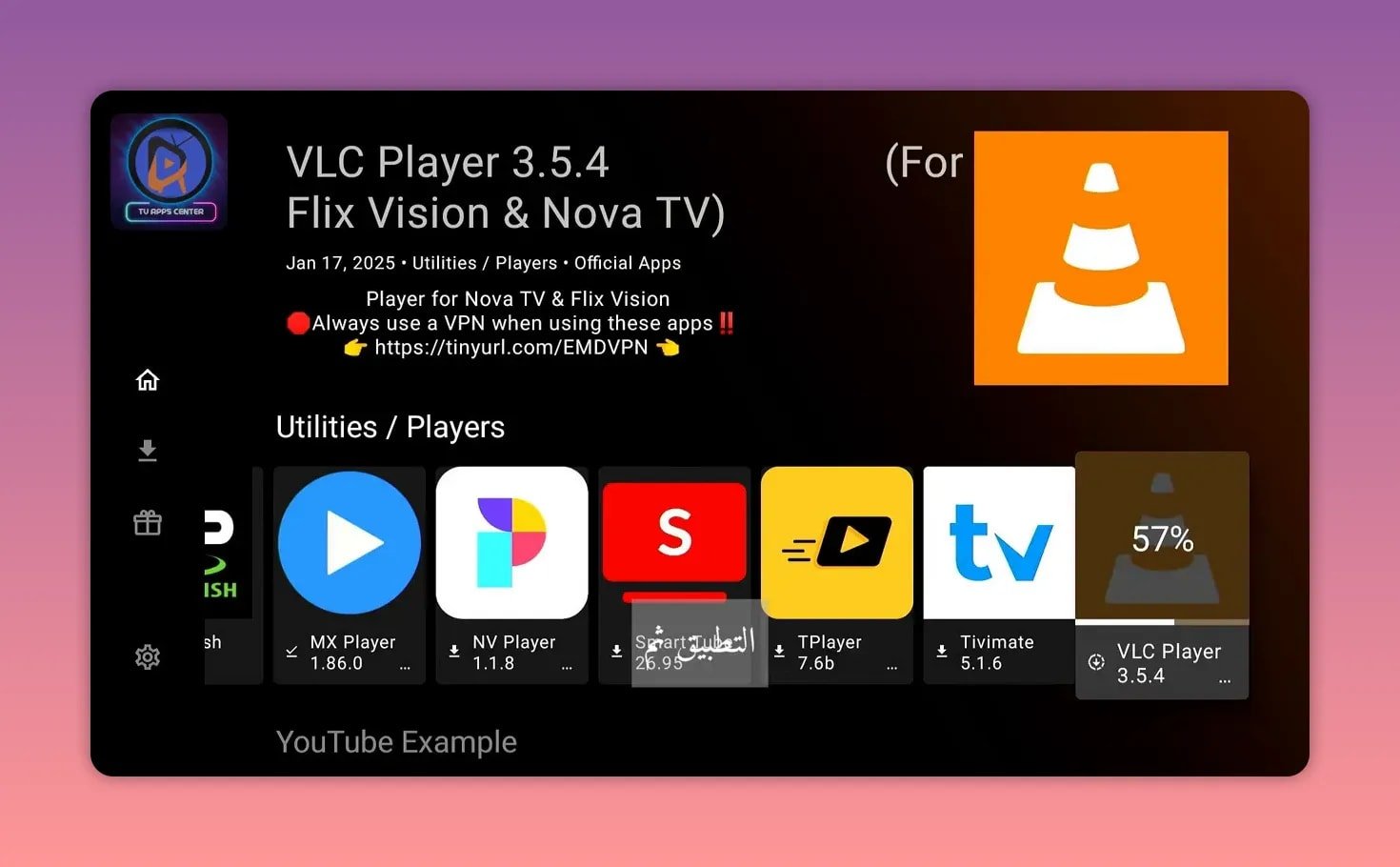
Submit the code, and the library loads quickly. Inside, you will find a well-organized selection of apps sorted into categories. These include entertainment apps, sports apps, media players, and support tools such as file managers and utilities.
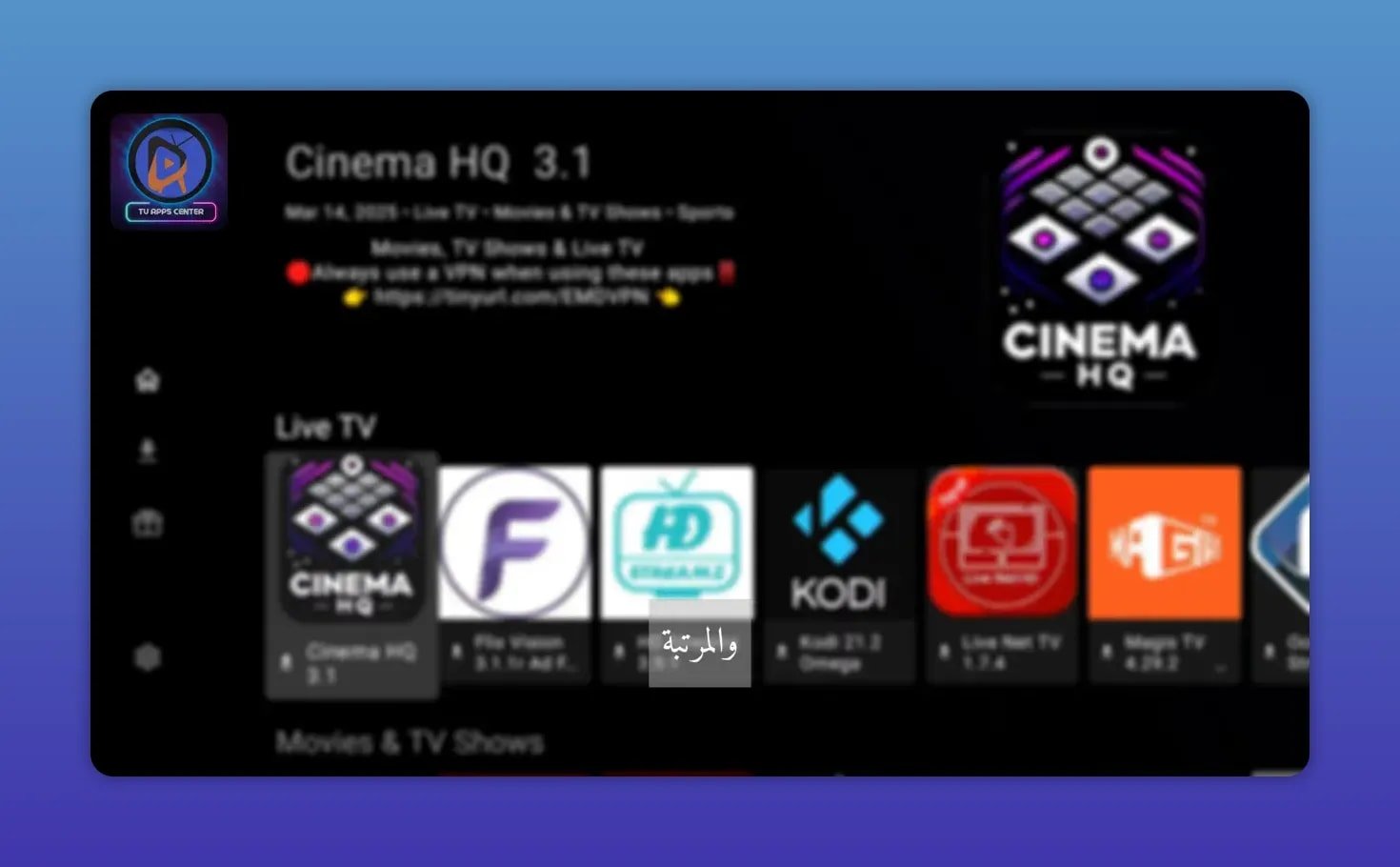
If you are looking for alternatives to standard app stores, this kind of library makes browsing much easier. Instead of jumping between links, forums, and scattered APK pages, everything is arranged in one place.
Some of the apps shown are focused on streaming and live channels. If that is what you want, you may also want to explore guides like iraq plus for Android TV or the latest Ola TV build for more app options and player setup ideas.
⬇️ How to install an app from inside Unlinked
The install process inside Unlinked is straightforward.
- Open the library.
- Choose the app you want.
- Press Download.
- After the file downloads, choose Install.
- Wait for the installation to finish.
- Find the app in your apps list and add it to the home screen if needed.
As an example, a media player such as VLC can be installed this way very easily. That is especially useful because some streaming apps work better when paired with an external player.
If you need a sports-oriented option afterward, Kira TV on Android TV is another useful option to compare.
🎁 Bonus: Add a second Unlinked library with the code FIRESTICK
One code is good. Two codes are better.
Instead of stopping at the first library, you can add another large collection inside Unlinked using this code:
- FIRESTICK
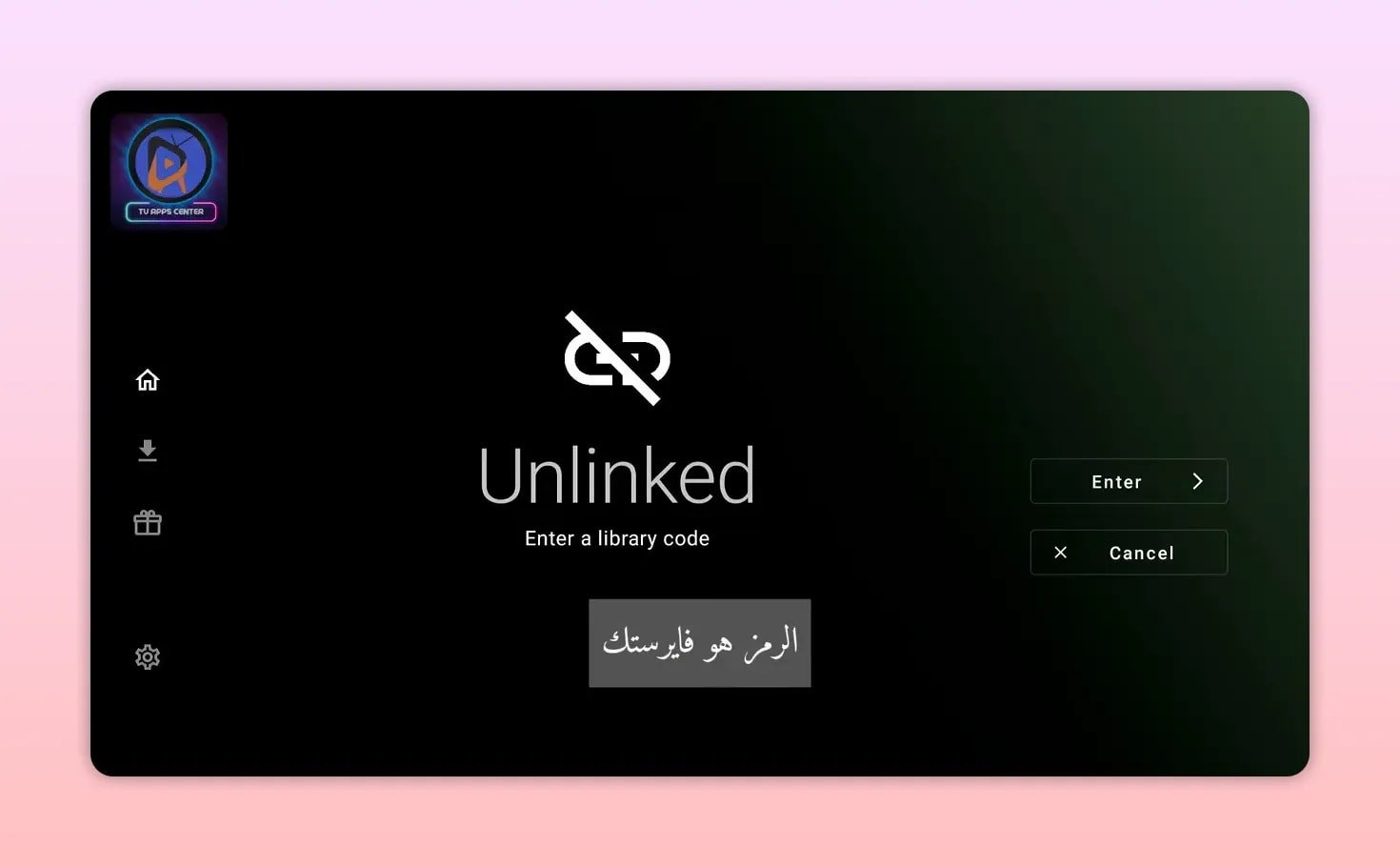
Enter it the same way you entered the first one. This gives you access to a different library with additional apps that may not appear in the first collection.
That is one of the best things about Unlinked. It is not tied to a single fixed catalog. You can build your own set of libraries and keep more than one source available on the same device.
🧠 Tips for getting the most out of Unlinked
To make the experience smoother, keep these points in mind:
- Install more than one useful app so you are not stuck if one stops working.
- Keep at least one external player like VLC ready to go.
- Delete APK files after installation to save space.
- Organize your home screen so your most-used apps stay within reach.
- Expect changes because free apps are not always stable long term.
This last point is important. Free apps and free libraries can disappear, break, or change at any moment. That is normal in this space. The best approach is to have backups, try a few alternatives, and avoid depending on a single app for everything.
❗ Important reminder about free apps
Apps like the ones found in these libraries are often free, but they are not guaranteed to stay available or keep working forever. Some stop suddenly, some move to new versions, and others require a different player later on.
That is why it is smart to install a few backup options instead of relying on one app only. If one fails, you already have another ready.
❓FAQ
What is the Downloader code used to install Unlinked?
The code used here is 968517. Enter it inside Downloader, then follow the redirect and download steps until the Unlinked APK installs.
Why is Unlinked not installing apps on my Android TV?
The most common reason is missing permission. You need to enable Install unknown apps for both Downloader and Unlinked in the device security settings.
What library code should I add first in Unlinked?
A featured code here is emdyoutube. After that, you can also add FIRESTICK as a second library for more apps.
Can I use Unlinked on Android TV and Android phones?
Yes. The method shown is intended for Android devices in general, including Android TV, TV Box devices, and phones, as long as APK installation from unknown sources is allowed.
Should I install a player app from Unlinked too?
Yes, that is a good idea. A player such as VLC can be useful because some apps perform better when they hand playback off to an external media player.
Are free apps inside Unlinked guaranteed to keep working?
No. Free apps can stop working at any time. The safest move is to keep multiple alternatives installed so you always have a backup.
Once Unlinked is installed properly and your library codes are added, your Android TV becomes much more flexible. You are no longer limited to the small set of apps you happen to find first in the default store. With the right permissions, the right code, and a couple of good libraries, you can build a much more useful setup in just a few minutes.