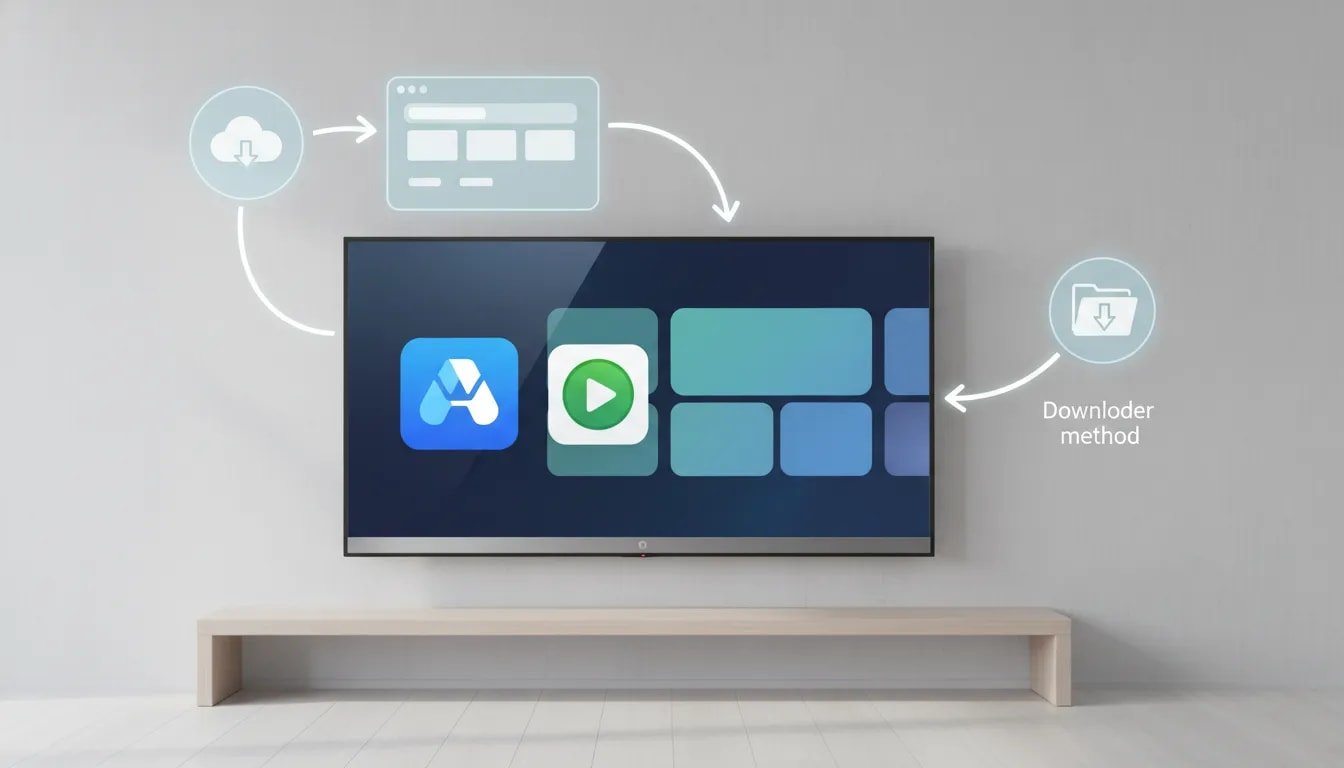
A lot of people run into the same issue. The Al Ostora app stops working, or the dedicated player it depends on is missing or broken. In most cases, the fix is simple. You need to install both parts correctly.
The important detail here is that Al Ostora is not enough on its own. You also need the separate video player that works with it. Once both are installed properly, the app should appear on the home screen and be ready to use.
This guide walks through the full process step by step using two methods:
- Downloader, which is the easiest option
- A web browser on the TV, which works if Downloader is not installed
If you use Android TV or a similar smart TV setup and want more app installation guides, there are also related options such as Kira TV on Android TV and Smart TV and iraq plus for Android TV.
Table of Contents
- 📺 What You Need Before Installing
- ⬇️ Method 1: Install Al Ostora Using Downloader
- 🎞️ Install the Al Ostora Video Player
- 🏠 Confirm Both Apps Are Installed
- 🌐 Method 2: Install Through the TV Browser
- 🛠️ Small Details That Prevent Big Problems
- ✅ The Exact Codes You Need
- ❓FAQ
📺 What You Need Before Installing
Before starting, make sure you understand that there are two separate installs:
- The Al Ostora app
- The video player for Al Ostora
If one of them is missing, the whole setup may fail or playback may not work properly.
You can install both using short codes inside Downloader. If Downloader is not available on your TV, the browser method does the same job using a direct address format.
⬇️ Method 1: Install Al Ostora Using Downloader
Start by opening the Downloader app on your TV.
Inside Downloader, move to the code field marked with the hash symbol and enter the code for the Al Ostora app:
- 7679091
After entering the code, confirm it with the check mark or the Enter button if you are using a keyboard. Wait a few seconds. The app page should open automatically.
Once the page appears:
- Select the download option
- Wait for the file to finish downloading
- Choose Install
If the app is already on your TV, the system may show Update instead of a fresh install prompt. That is normal. In that case, proceed with the update.
The app file is small, around 2 MB, so it should not take long unless the internet connection is slow.
Delete the installer file after setup
Once installation finishes, do not skip the cleanup step. Choose Done, then delete the downloaded file.
This matters more than people think. Leftover installer files can eat up internal storage and gradually make the TV slower. Deleting them right away helps avoid lag and keeps the system cleaner.
🎞️ Install the Al Ostora Video Player
Now do the same thing for the player, because the app depends on it.
Go back to Downloader and enter the player code:
- 567221
Confirm the code, wait a few seconds, and open the download page when it appears.
The player file is larger than the main app, around 12 MB, so it may take longer depending on your internet speed. After the download finishes:
- Choose Install
- Wait for installation to complete
- Select Done
- Delete the installer file
🏠 Confirm Both Apps Are Installed
After pressing the Home button on the remote, check the main app screen. You should see:
- Al Ostora
- Its video player
If both icons are present, the installation was successful.
If only one appears, go back and install the missing part. That is usually the reason playback fails.
🌐 Method 2: Install Through the TV Browser
If your TV does not have Downloader, you can still install the app and player using any web browser available on the screen.
Open the browser, go to the search or address bar, and type the following format:
aftv.news/APP-CODE
That structure stays the same every time. You only change the code at the end.
Browser link for Al Ostora
To open the Al Ostora app page, type:
aftv.news/7679091
Browser link for the player
To open the video player page, type:
aftv.news/567221
After entering either address, confirm it and wait a few seconds. From that point, the process is basically the same as Downloader:
- Open the page
- Start the download
- Install the app
- Finish
- Delete the installer file if prompted
🛠️ Small Details That Prevent Big Problems
There are a few practical points that make the whole process smoother:
- Wait through the short delay after entering a code or link. The page may take around five seconds before loading.
- Use Enter or the check mark after typing the code.
- Do not keep installer files after installation. Delete them to save storage.
- Slow download does not always mean a bad file. It is often just your internet speed.
- If you already installed the app before, the system may show an update prompt instead of a first time install.
If you regularly install streaming apps on smart TVs, it is worth keeping Downloader ready and cleaning up APK files after every install. That one habit alone can save you a lot of performance headaches.
✅ The Exact Codes You Need
For convenience, here are the two codes again:
- Al Ostora app code: 7679091
- Al Ostora player code: 567221
And if you are using the browser method:
- aftv.news/7679091
- aftv.news/567221
❓FAQ
Do I need to install both Al Ostora and the player?
Yes. The setup depends on two separate apps. Install the main Al Ostora app and then install its video player. If you skip the player, playback may not work.
What is the Downloader code for Al Ostora?
The code for the Al Ostora app is 7679091.
What is the Downloader code for the Al Ostora player?
The code for the player is 567221.
Can I install Al Ostora without Downloader?
Yes. Use your TV browser and enter the address in this format: aftv.news/code. For the app use aftv.news/7679091, and for the player use aftv.news/567221.
Why should I delete the downloaded files after installation?
Those files stay in internal storage and can take up space over time. On some TVs that leads to lag, slower performance, or unnecessary clutter.
Why do I see Update instead of Install?
That usually means the app is already on your TV. The system is offering to replace it with the newer version, which is exactly what you want in that case.