If you want a solid live sports app for Android TV, Yacine TV Gold is one of the easiest options to set up. The version shown here is the gold build, and the main appeal is simple: it works smoothly, it opens sports channels quickly, and it is presented as an ad-free option with stable playback.
This guide walks through the full process on an Android TV or TV box, from installation with Downloader to testing live match channels inside the app.
Table of Contents
- 📥 What this version of Yacine TV Gold offers
- 🛠️ Step 1: Open Downloader on your Android TV
- ⏳ Step 2: Wait for the redirect and open the download page
- 📲 Step 3: Install the APK and clean up the leftover file
- 📺 Step 4: Launch Yacine TV Gold
- ⚽ Step 5: Check live matches and sports channel sections
- ✅ Step 6: Test playback quality and channel stability
- 🧭 Practical tips for using Yacine TV Gold on Android TV
- 🏁 Final takeaway
- ❓ FAQ
📥 What this version of Yacine TV Gold offers
This build is aimed at anyone looking for live football streaming on Android TV with quick access to sports channels and match coverage. The focus in the setup is not on complicated configuration. It is about getting the app installed fast and checking that channels actually open.
The key points highlighted in the demo are:
- It is the gold edition of Yacine TV, not the regular release.
- It is presented as working reliably without cutting or stuttering.
- It is also presented as having no ads during use.
- It includes access to live match sections and sports channel groups.
- It is designed for Android TV screens rather than phone-first navigation.
If you like testing sports apps on TV devices, you may also find this related setup useful: Best Android TV World Cup Streaming Setup.
🛠️ Step 1: Open Downloader on your Android TV
The installation starts from the apps section on the TV device. Open the Downloader app first. This is the tool used to fetch the APK file directly using a short numeric code.
Inside Downloader, move to the code entry field. The preferred method shown is the code search style that displays numbers clearly, which makes input easier on a TV remote.
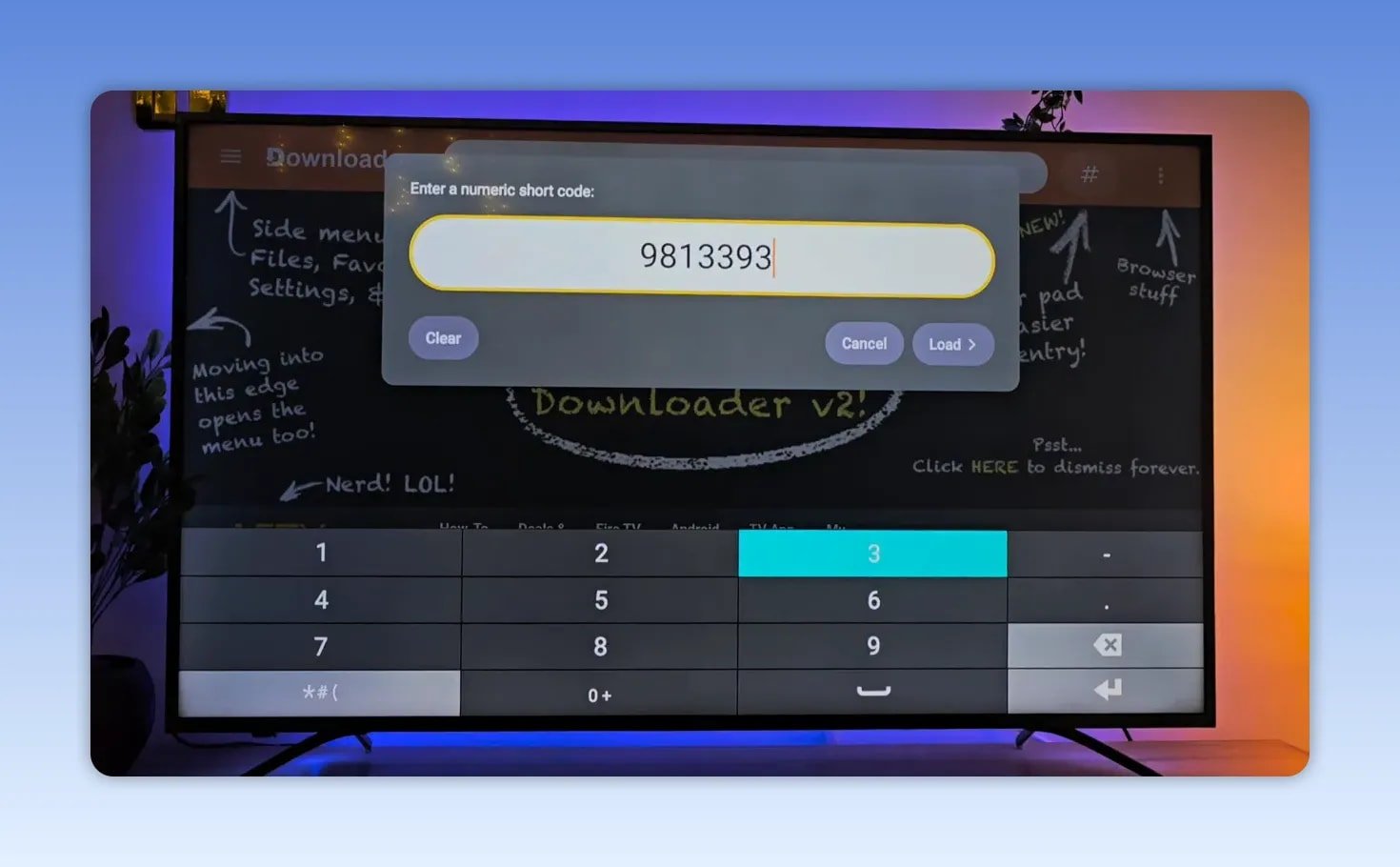
Enter this code:
- 9813393
After entering the code, confirm it so Downloader can forward you to the file page.
⏳ Step 2: Wait for the redirect and open the download page
Once the code is submitted, Downloader redirects to the file source automatically. There is a short countdown before the page opens fully. After that, the download page appears and you can move ahead to the APK file.
The process shown uses a redirect page first, then lands on a MediaFire download screen where the APK is hosted.
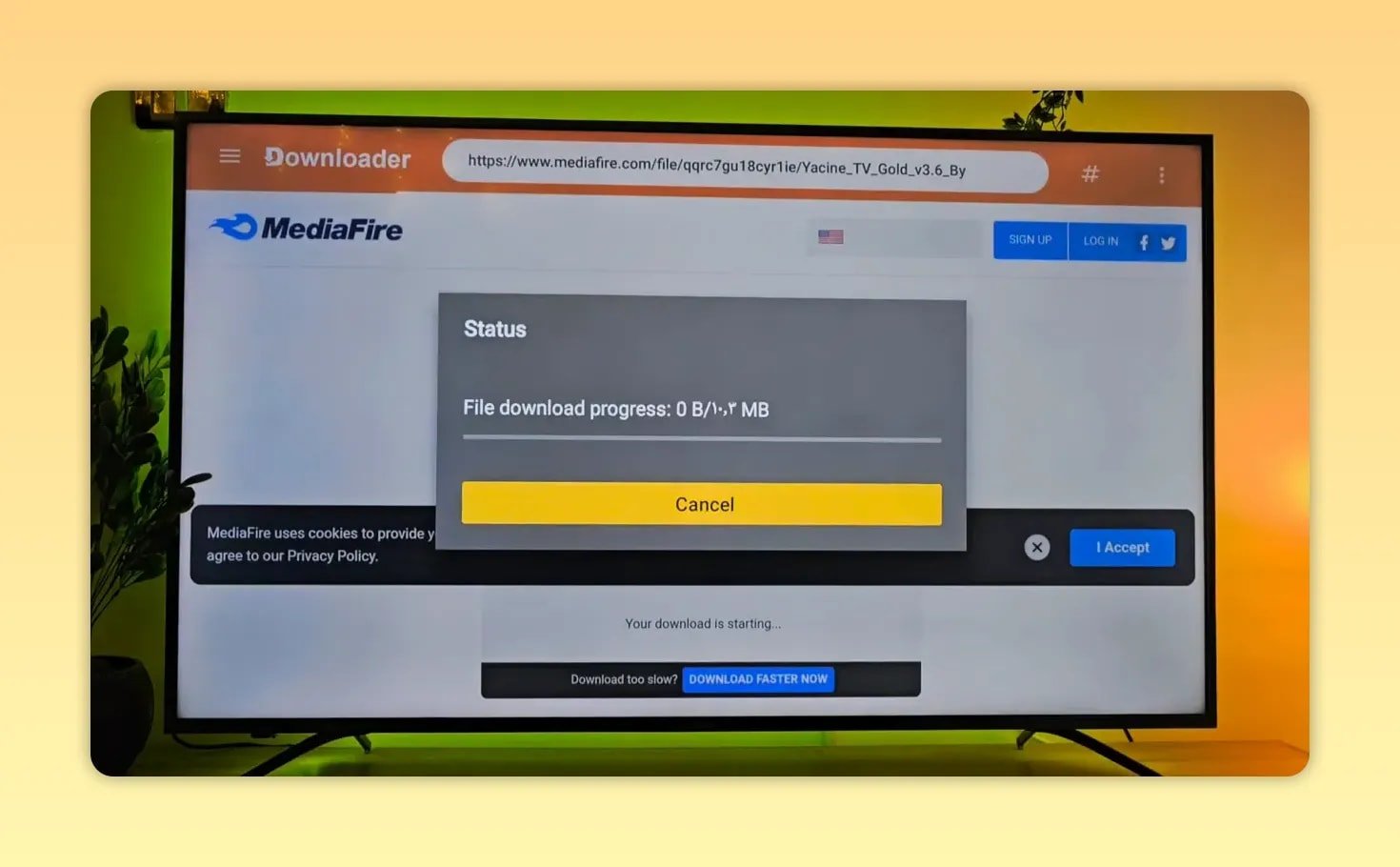
At that point, select the download option and allow the APK to finish downloading.
📲 Step 3: Install the APK and clean up the leftover file
After the APK finishes downloading, the Android installer opens. Choose Install and wait for the app to be added to the device.
When installation is complete, do not skip the cleanup step. Instead of leaving the APK sitting in storage, choose Done, then delete the installer file from Downloader. This keeps the device cleaner and avoids wasting space on a file you no longer need.
That basic habit is worth keeping for almost any sideloaded Android TV app.
📺 Step 4: Launch Yacine TV Gold
After installation, the app appears in the apps list as Yacine TV Gold. Open it and wait for the main interface to load.
The app interface shown here uses a bright yellow layout with category navigation on the side and channel or match tiles across the main area. It is clearly structured for remote control use, which matters a lot on Android TV.
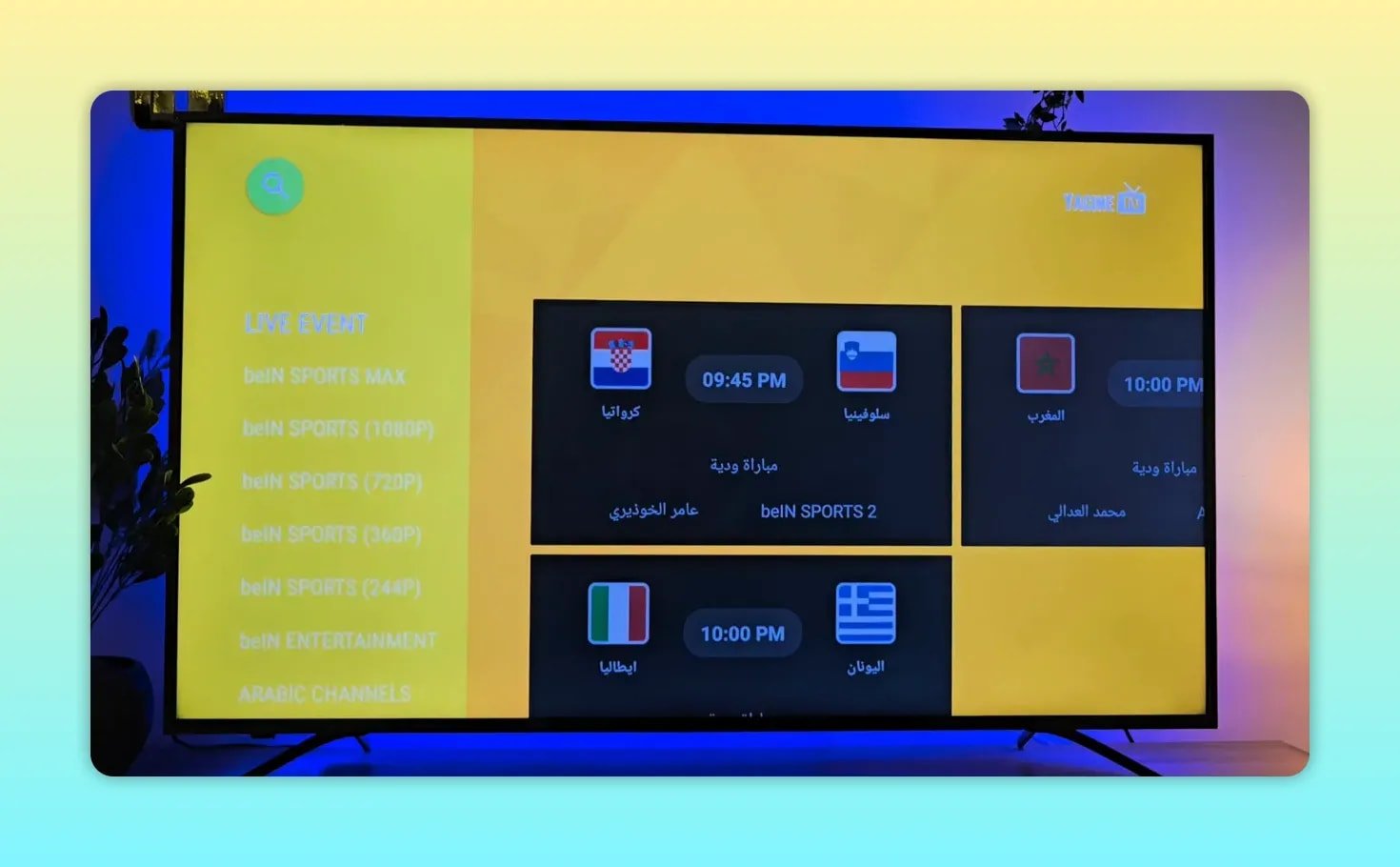
On first launch, the app opens into the sports and channel area where live items are already visible.
⚽ Step 5: Check live matches and sports channel sections
From the main screen, the first thing to test is the active match area. That confirms whether the app is currently pulling live streams correctly.
In the demo, the app moves through sports sections and then opens channels related to major football coverage, including groups labeled for premium sports broadcasts and World Cup style coverage.
The categories shown suggest quick access to:
- Current live matches
- Sports channel packages
- BeIN-style channel groups
- Major tournament coverage
If your goal is simply to open a match and test playback quality, this is the right point to do it.
✅ Step 6: Test playback quality and channel stability
After selecting a sports channel, the stream opens in the built-in player. The example shown tests more than one channel to make sure this is not a one-off success. One stream opens cleanly, then another sports channel is tested and also works.
The result highlighted is straightforward:
- The channels load successfully.
- The picture is clear.
- Playback appears stable.
- More than one sports stream works, which is a much better sign than testing only a single channel.
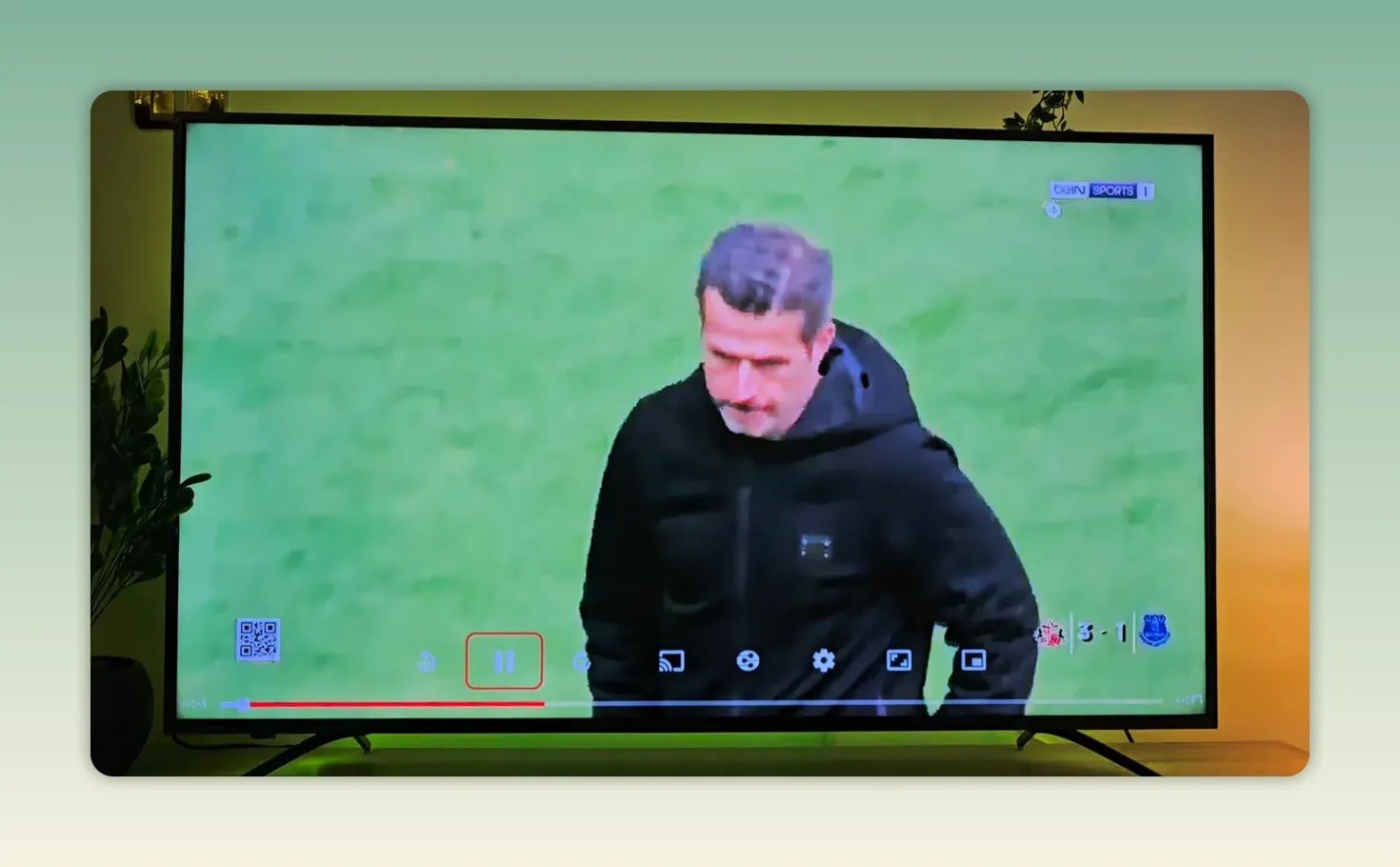
Another tested stream also opens normally, reinforcing the main point that the sports channels are functioning rather than just appearing in the menu.
If you are comparing options for TV-based sports apps, you may also want to check Ola TV New Android TV Build for another Downloader-based setup.
🧭 Practical tips for using Yacine TV Gold on Android TV
Even in a quick setup like this, a few habits make the experience better:
- Use Downloader codes carefully. One wrong number can send you somewhere else entirely.
- Delete the APK after installation. It saves storage on smaller TV boxes.
- Test more than one channel. A single working stream does not tell the whole story.
- Give streams a moment to load. Some channels open after a short loading screen.
- Stick to the TV interface version. Apps designed for Android TV are much easier to control than phone ports.
🏁 Final takeaway
For anyone searching for the best app for live matches on Android TV, this Yacine TV Gold setup keeps things simple. You install it through Downloader with a short code, clean up the APK after installation, open the app, and immediately test live sports channels.
The strongest part of the walkthrough is that it does not stop at installation. It actually verifies the result by opening match streams and checking image quality. If what you need is quick access to live football, sports streaming, and TV-friendly channel navigation, this version is built around exactly that.
❓ FAQ
What is the Downloader code used to install Yacine TV Gold?
The code entered in Downloader is 9813393.
Is this the regular Yacine TV app?
No. The version shown here is the Yacine TV Gold edition rather than the standard build.
Does Yacine TV Gold work on Android TV?
Yes. The full setup and testing are done on an Android TV style interface, and the app layout is clearly usable with a remote.
Are live sports channels actually tested after installation?
Yes. Multiple sports channels are opened after installation to confirm that streams load and playback is working.
Should you delete the APK file after installing the app?
Yes. After the installation finishes, deleting the APK is a smart cleanup step that frees storage space on the device.