Sun Plus TV is one of the apps many people look for when they want a simple way to set up entertainment and match streaming on a smart TV, especially with growing interest around World Cup 2026 content. The important part is not just installing Sun Plus TV itself, but also installing the dedicated video player that works with it.
This guide walks through the full process clearly, step by step. You will find three installation methods:
- Installing Sun Plus TV with Downloader codes
- Installing through the TV browser
- Installing from Google Play when available
I will also cover where to find the app after installation, how to remove leftover files so the TV does not slow down, and how to keep a backup copy on a USB flash drive.
Table of Contents
- 📦 What you need before installing Sun Plus TV
- ⬇️ Method 1: Install Sun Plus TV using Downloader
- 🎬 Install the dedicated player for Sun Plus TV
- 🧭 Why Sun Plus TV may not appear on the home screen
- 🔑 How to activate Sun Plus TV after installation
- 🌐 Method 2: Install Sun Plus TV through the TV browser
- 📁 How to find and install the downloaded files from the browser
- 💾 How to back up Sun Plus TV and the player to a USB drive
- 🛍️ Method 3: Install Sun Plus TV from Google Play
- ⚠️ Common issues when installing Sun Plus TV
- ✅ Best setup order for Sun Plus TV
- ❓FAQ
📦 What you need before installing Sun Plus TV
Before starting, make sure the TV already has a few basic tools ready:
- Downloader app, if you want the fastest installation method
- A web browser, if you prefer downloading manually
- A file manager, to access downloaded APK files
- SideLoad Launcher or an apps launcher, because sideloaded apps may not appear on the home screen
If you regularly install Android TV apps this way, it also helps to understand how sideloading works. Google’s official Android help center is useful for general Android app behavior and permissions: Android Help.
⬇️ Method 1: Install Sun Plus TV using Downloader
This is the most direct method. Open the TV home screen, launch Downloader, then move to the search field at the top and choose the code entry option.
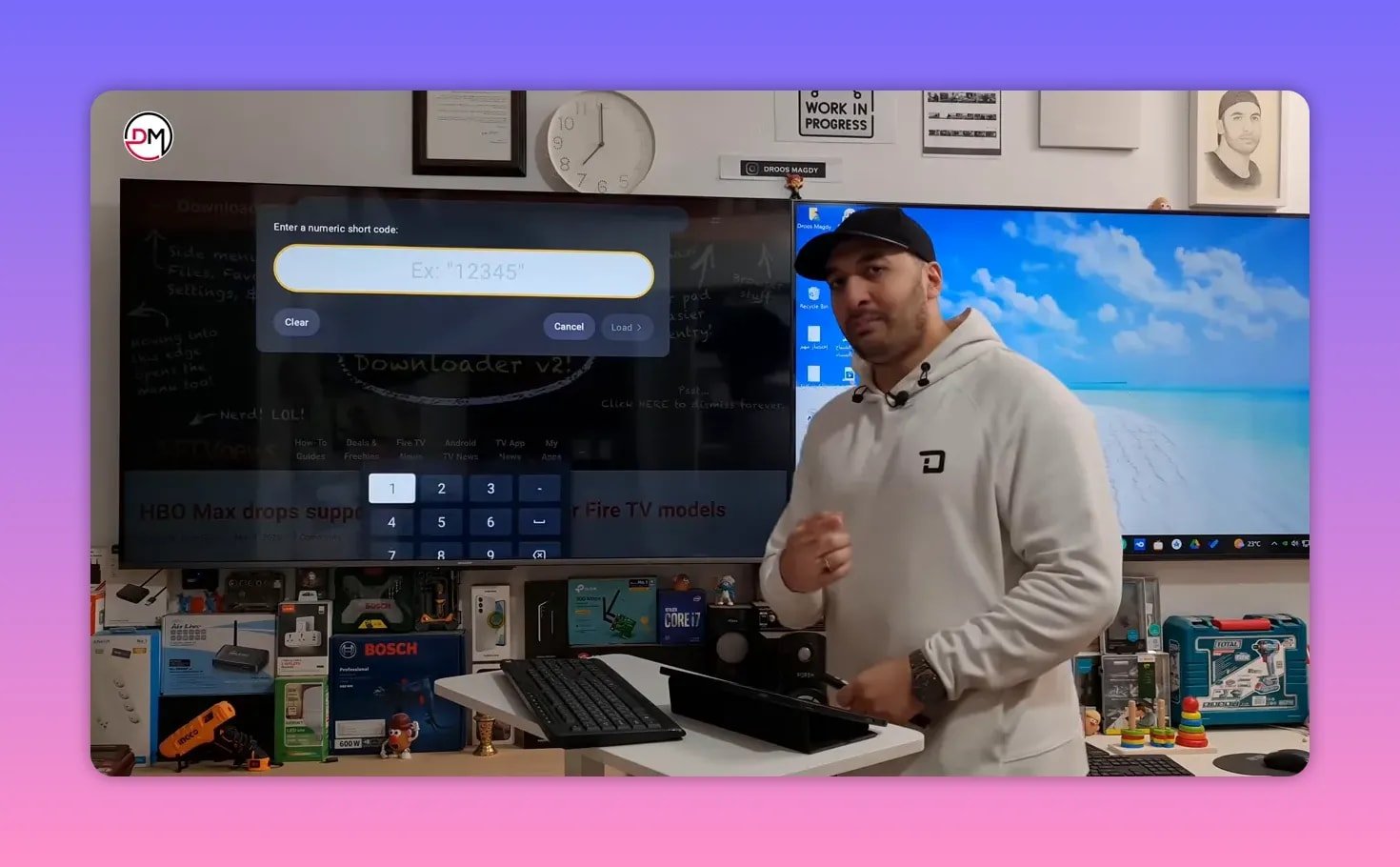
Sun Plus TV Downloader code
Enter this code for the app:
- 7474606
After entering the code, confirm with the keyboard enter button or the check mark. Then wait. Do not press random buttons during the short countdown. After a few seconds, Downloader will connect automatically and begin opening the installation page.
If Sun Plus TV is already installed on the TV, the system may show Update instead of a first-time install prompt. That is normal. In both cases, choose Install.
The app size is around 32 MB, so it should not take long unless the internet connection is slow.
Delete the installation file after setup
Once installation finishes, choose Done, not Open. Then delete the APK file from Downloader.
This step matters more than many people think. Leftover APK files take up internal storage and can contribute to lag, especially on TVs with limited memory. So after installing Sun Plus TV, press Delete, then confirm Delete again.
🎬 Install the dedicated player for Sun Plus TV
Sun Plus TV also needs its matching player to handle video playback properly. The installation process is exactly the same as the main app.
Go back into Downloader and enter the player code:
- 4195616
Confirm, wait through the countdown, and let the download start. The player file size is about 30 MB. When the install prompt appears, choose Install. If it is already on the TV, it may show as an update. That is also normal.
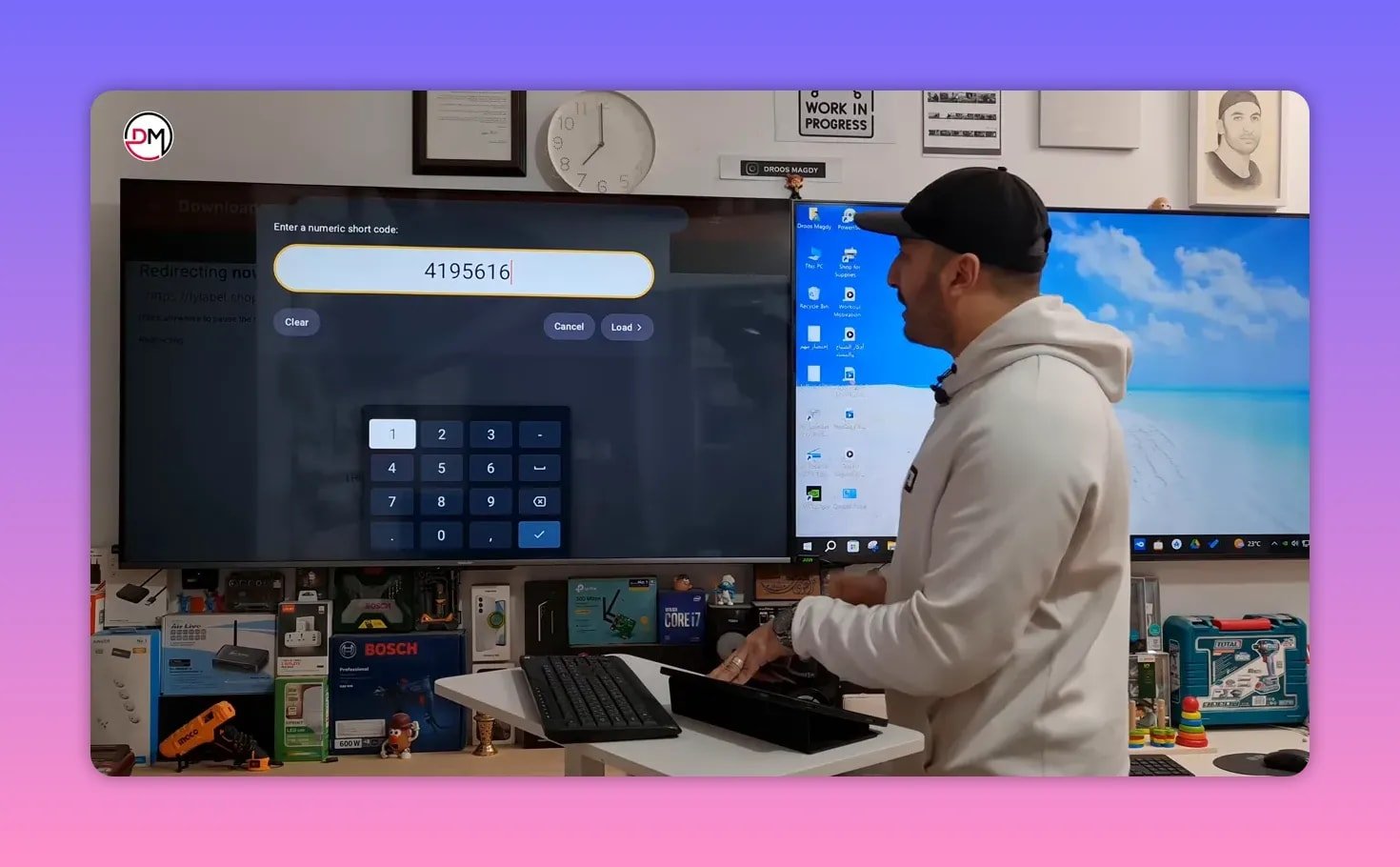
When installation is complete:
- Press Done
- Delete the downloaded file
- Return to the home screen
🧭 Why Sun Plus TV may not appear on the home screen
This is one of the most common points of confusion. After sideloading, Sun Plus TV may install successfully but still not show on the main TV launcher.
That does not mean the app failed to install.
You simply need a tool such as SideLoad Launcher or another applications launcher that displays all installed apps, including sideloaded ones.
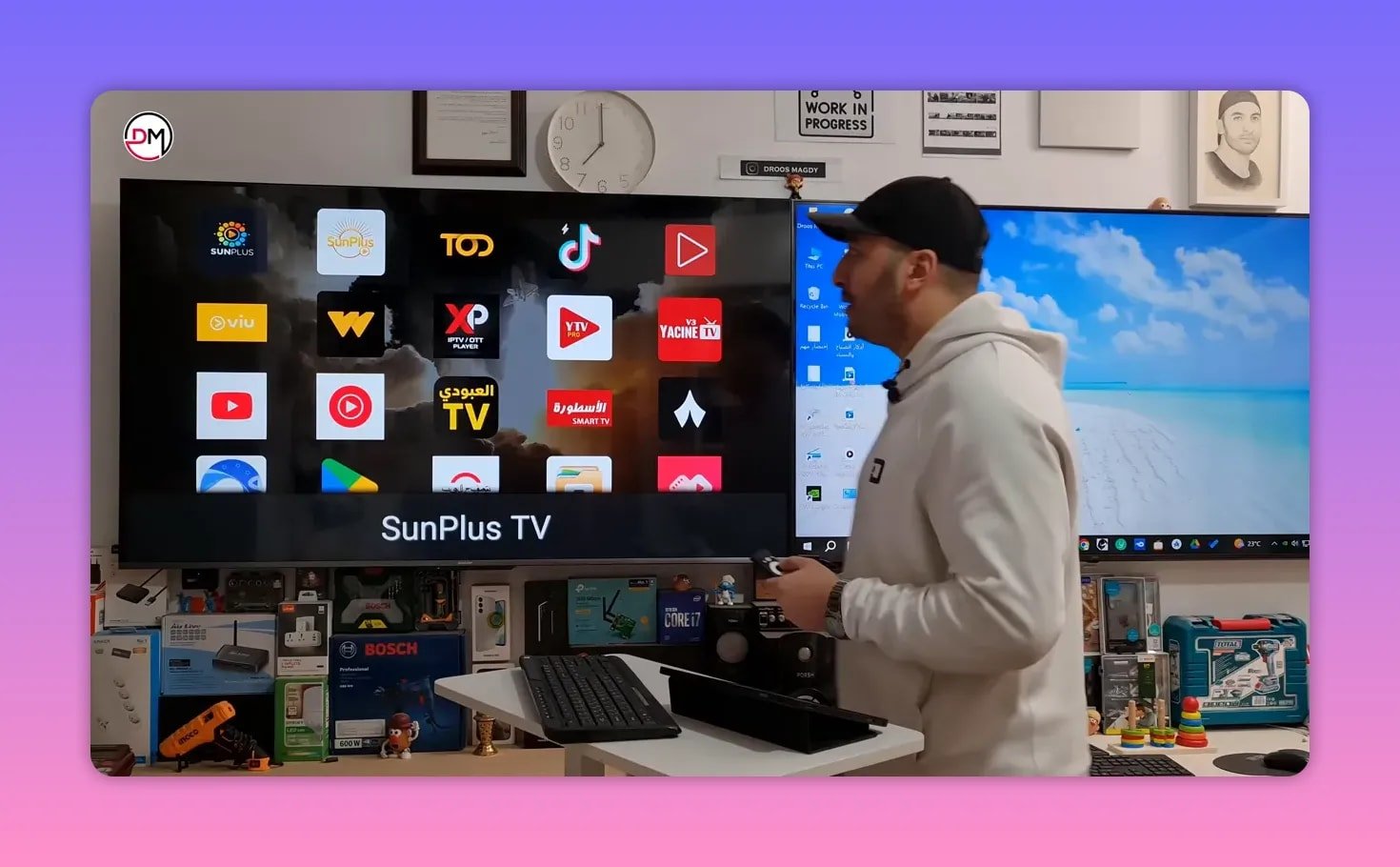
Open the launcher and you should find:
- Sun Plus TV
- The dedicated video player
If you often install streaming apps this way, a launcher is worth keeping on the TV permanently. If you want another example of a Downloader-based Android TV installation workflow, this related guide can help: 5 Steps to Install a Streaming App on Smart TV & Phone.
🔑 How to activate Sun Plus TV after installation
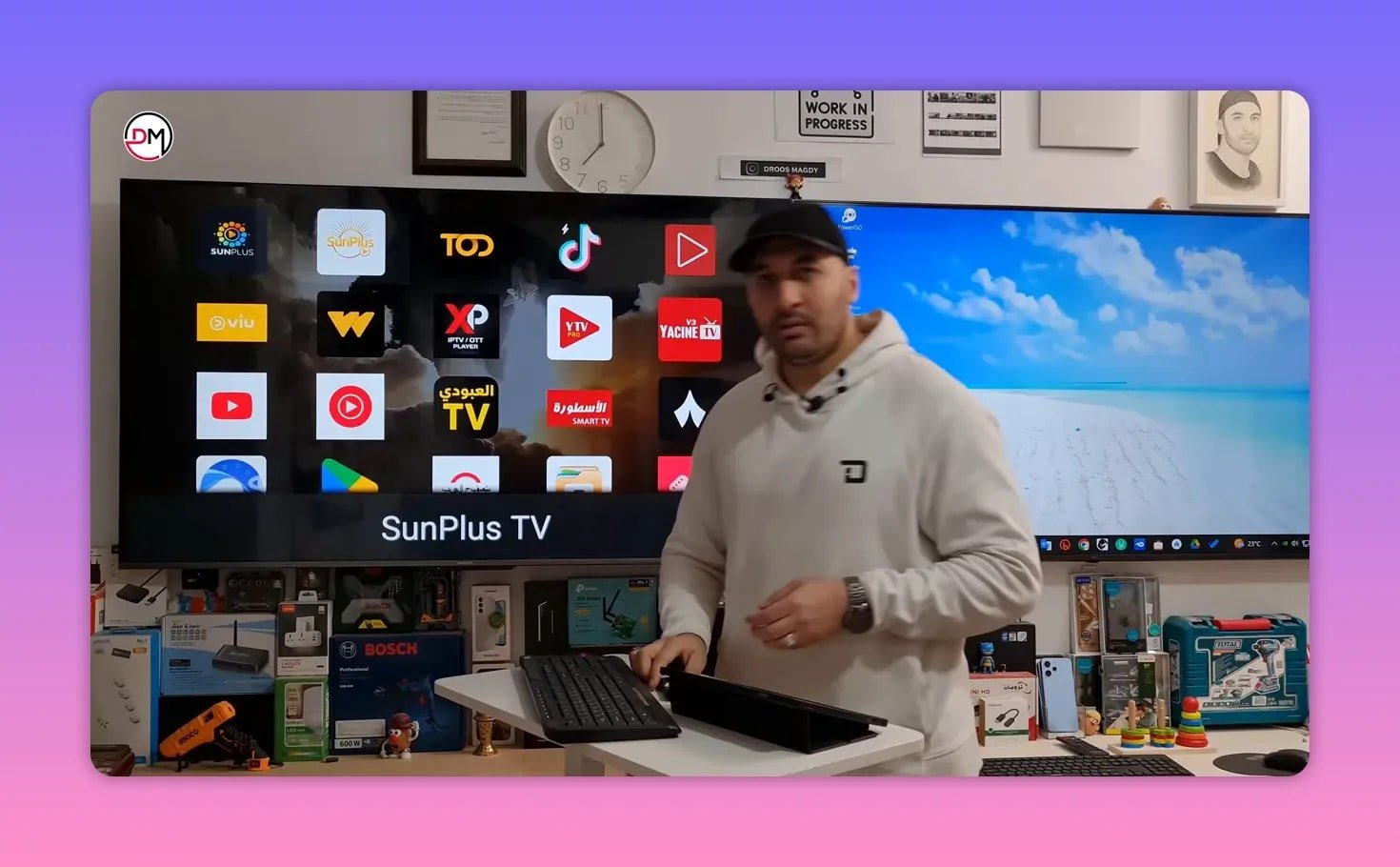
Open Sun Plus TV and you will see three options. In the first box, enter the required activation word exactly as provided inside the app setup process.
The critical detail is this:
- The letter M must be uppercase
- The letter L must be uppercase
- Do not add commas or separators
After entering the word correctly, Sun Plus TV should start working automatically.
🌐 Method 2: Install Sun Plus TV through the TV browser
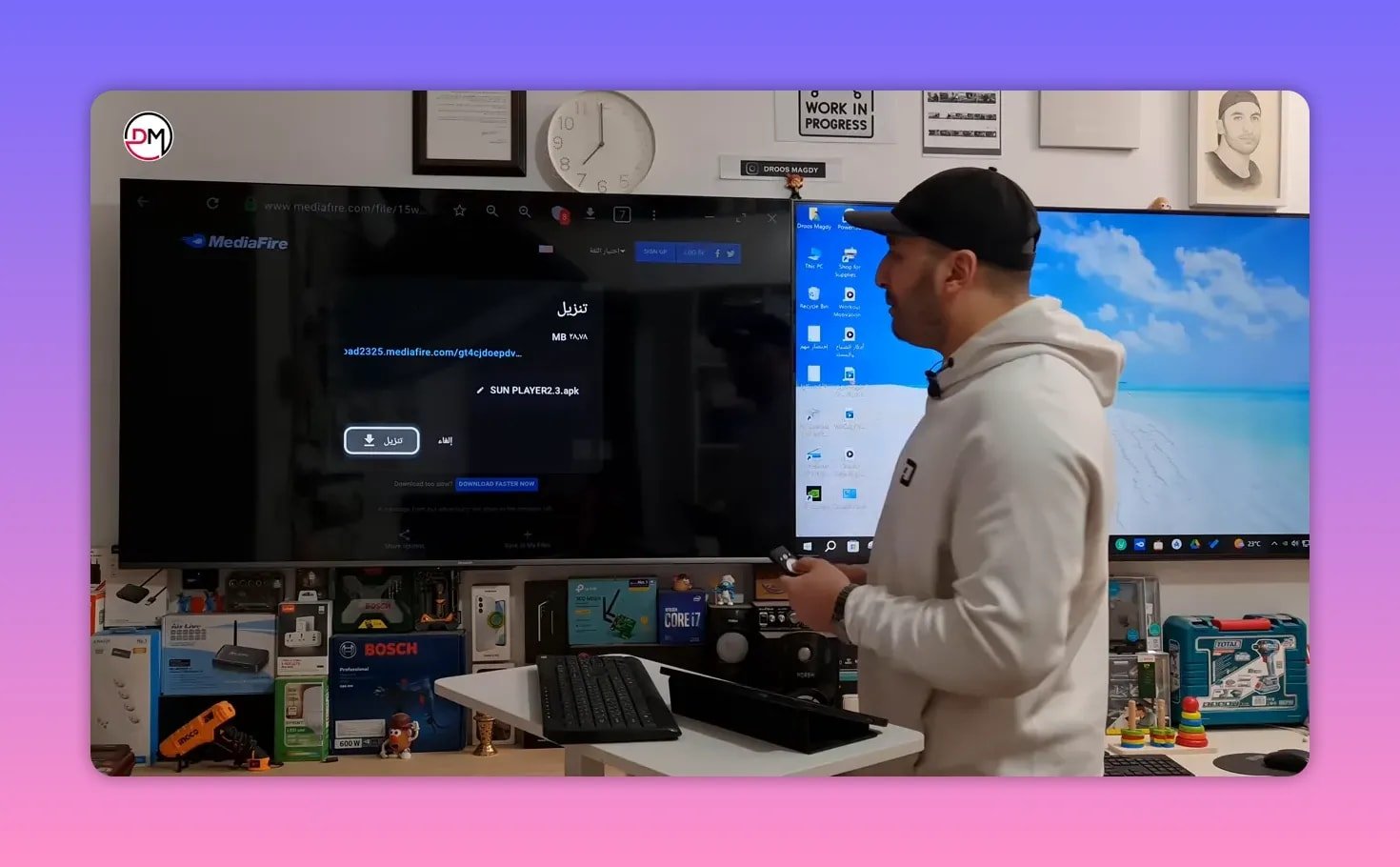
If Downloader is not available, you can still install Sun Plus TV through any browser on the TV.
Open the browser and type the following format in the address bar:
aftv.news/CODEThis format stays the same for any supported app. You only replace the code at the end.
Browser link for Sun Plus TV
aftv.news/7474606After entering the address, confirm and wait a few seconds. The page should connect automatically. Then choose Download and wait until the file reaches 100%.
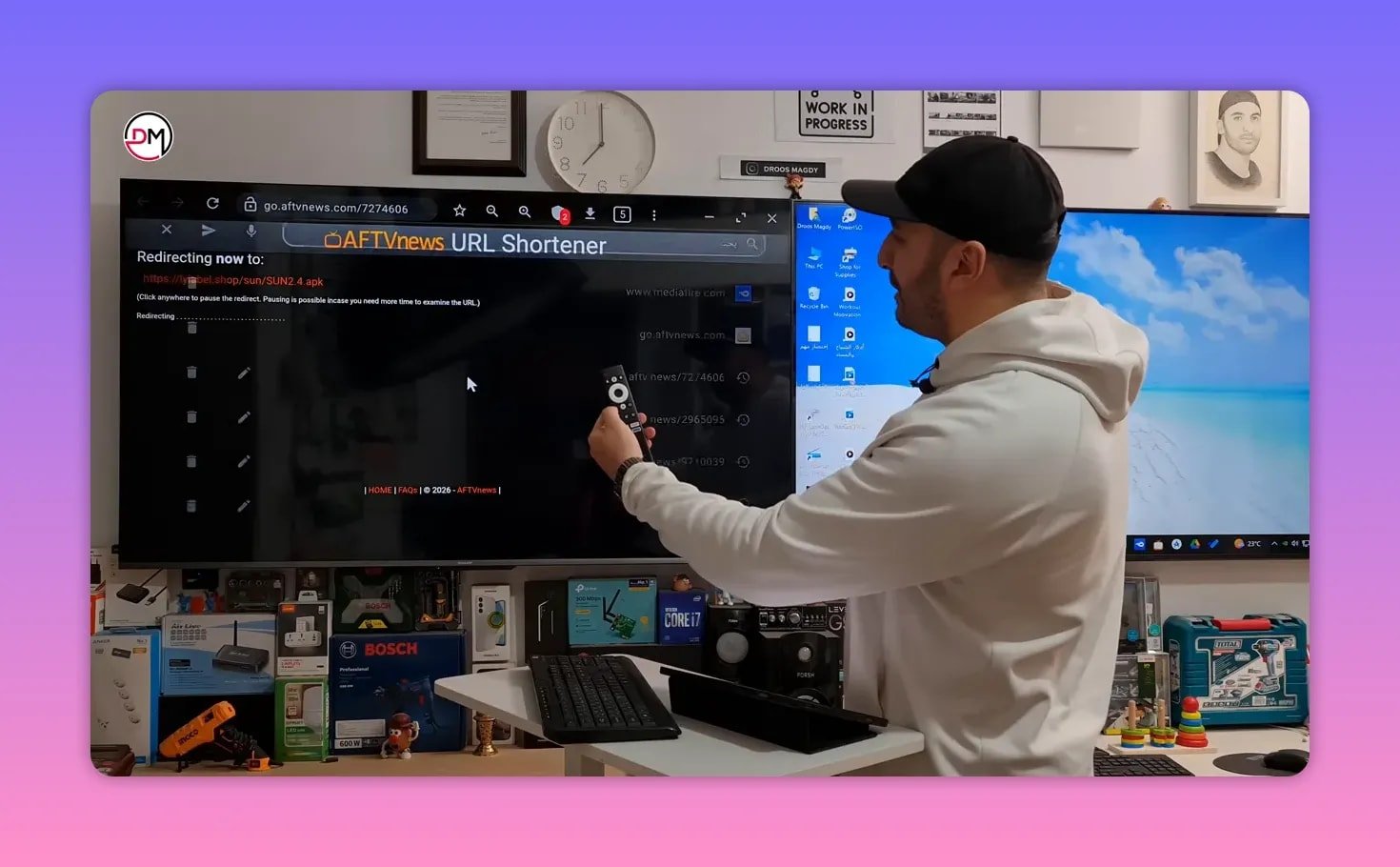
Browser link for the player
aftv.news/4195616Repeat the same exact process for the player. Open the address, wait for the connection, press Download, and let it finish completely.
📁 How to find and install the downloaded files from the browser
When you download through the browser, the APK files usually go into the Downloads folder. To access them:
- Go back to the home screen
- Open File Manager
- Open the Downloads folder
- Locate the Sun Plus TV APK and the player APK
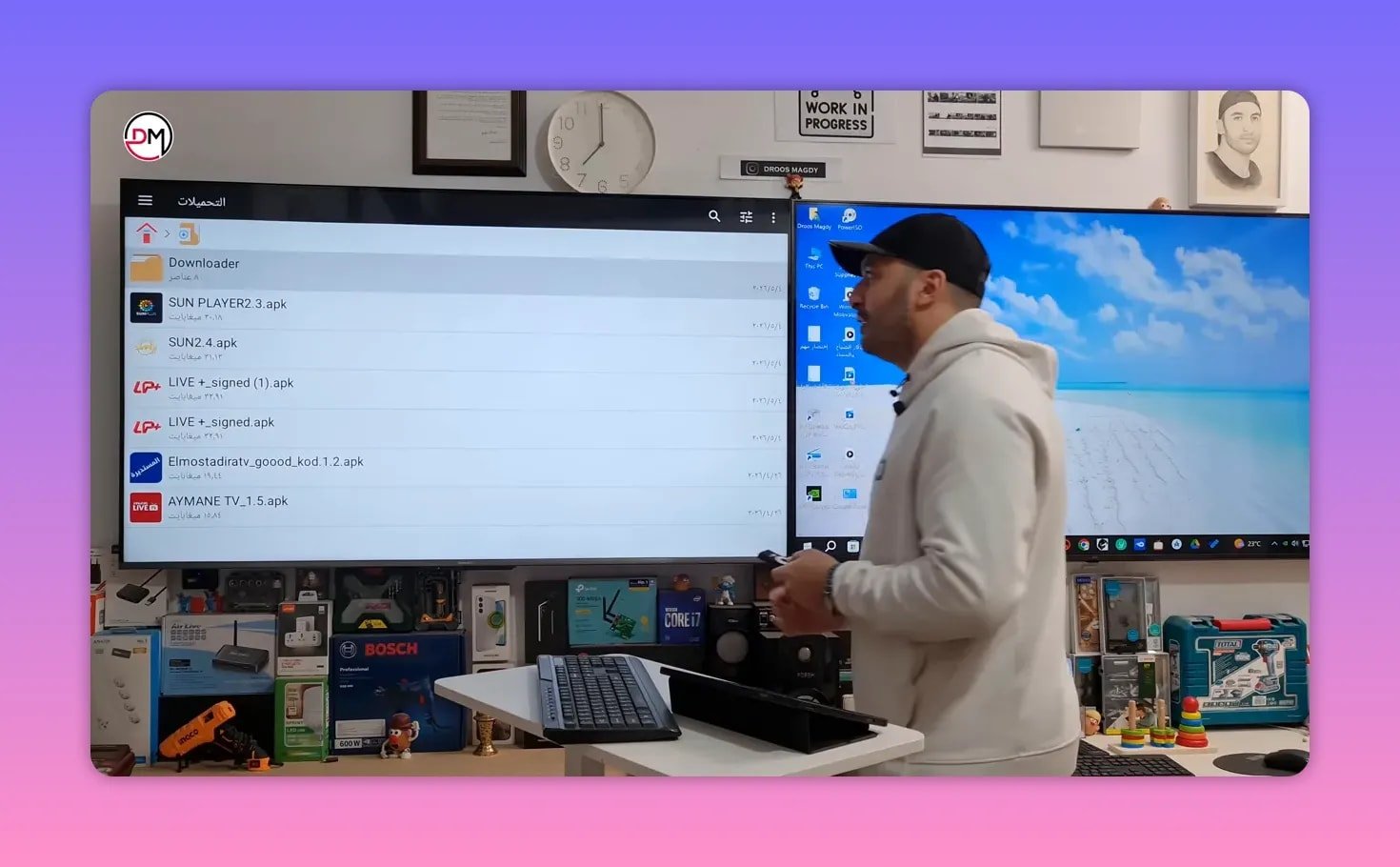
From there, you can install either one with a simple press. If the system gives you the usual options such as Install, Update, or Cancel, choose what fits your situation.
On some TVs, the remote may not respond correctly on the package installer screen. If that happens, use an external mouse to complete the install selection.
This same idea applies to many Android TV apps, not just Sun Plus TV. For more Android TV app tutorials, this collection may be useful: Android TV app guides.
💾 How to back up Sun Plus TV and the player to a USB drive
This is a very practical extra step. If you want to keep a backup copy of Sun Plus TV and its player on a flash drive, you can do that directly from the file manager.
Inside the Downloads folder:
- Highlight the app file
- Long press and choose Copy
- Go back and open your USB drive
- Select any folder
- Choose Paste
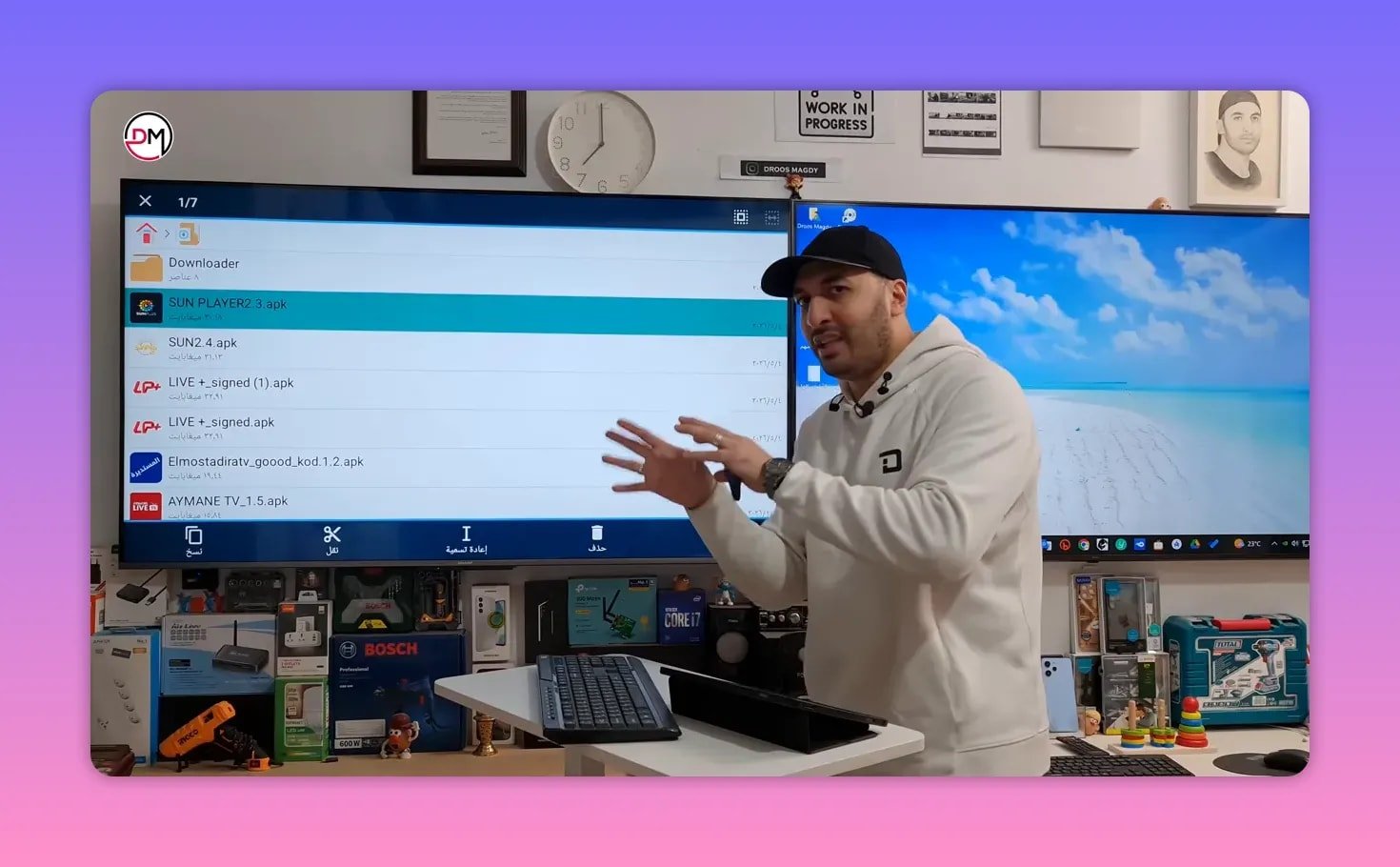
Repeat the same steps for the player APK. This gives you a ready-made backup so you can reinstall later without downloading again.
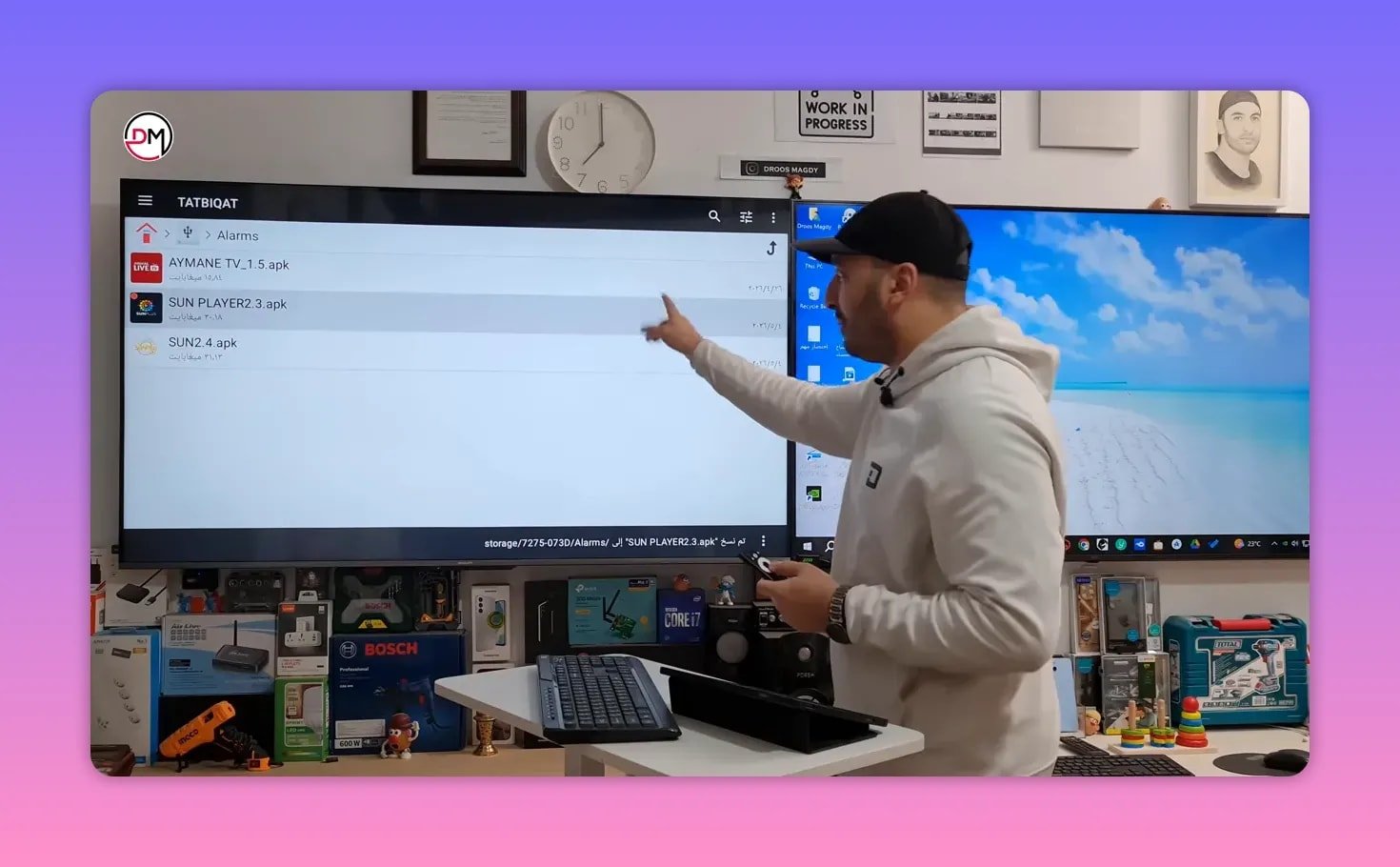
A backup is especially helpful if:
- Your TV connection is unstable
- You often reinstall apps
- You want to move the files to another compatible device
🛍️ Method 3: Install Sun Plus TV from Google Play
If Sun Plus TV and its player are available in your region through Google Play, this is the easiest route.
Open Google Play Store on the TV and search for:
- Sun Plus TV
- M Plus Player
Install both. Then launch Sun Plus TV and enter the required activation word in the first field, making sure the M and L letters are uppercase and there are no separators.
Once that is done correctly, the setup should complete automatically.
If you prefer official app store guidance for managing Android TV apps, Google Play Help can also be useful: Google Play Help.
⚠️ Common issues when installing Sun Plus TV
App installed but not visible
Use SideLoad Launcher or another apps launcher. This is the most likely reason when Sun Plus TV seems to “disappear” after installation.
Installer asks for update instead of install
That simply means a previous version is already on the TV. Choosing Install will update it.
TV becomes slow after repeated installations
Delete APK files after every installation. Those leftover files consume internal memory and can cause lag.
Remote does not work on the install screen
Use an external mouse if the package installer interface does not respond properly to the remote.
Browser download completed but app is not opening
Go to the Downloads folder in the file manager and manually run the APK from there.
✅ Best setup order for Sun Plus TV
If you want the smoothest path, follow this order:
- Install Sun Plus TV
- Install the dedicated player
- Delete both APK files after installation
- Open a sideload launcher if the app does not appear on the home screen
- Launch Sun Plus TV and enter the activation word correctly
- Optionally copy both APK files to a USB drive for backup
❓FAQ
What is the Downloader code for Sun Plus TV?
The Downloader code for Sun Plus TV is 7474606.
What is the Downloader code for the Sun Plus TV player?
The player code is 4195616.
Why does Sun Plus TV not show on the TV home screen after installation?
Because sideloaded apps often do not appear on the default launcher. Install or open SideLoad Launcher to access Sun Plus TV.
Can I install Sun Plus TV without Downloader?
Yes. You can use the TV browser with aftv.news/7474606 for Sun Plus TV and aftv.news/4195616 for the player, then install both files from the Downloads folder in the file manager.
Should I delete the APK file after installing Sun Plus TV?
Yes. Deleting the APK after installation helps save internal storage and can reduce lag on the TV.
Can I keep a backup of Sun Plus TV on a flash drive?
Yes. Use the file manager, go to Downloads, copy the Sun Plus TV APK and the player APK, then paste them into a folder on your USB drive.
What should I do if the remote does not work on the install screen?
Use an external mouse. Some TV installer screens do not respond properly to the remote.
With the right code, the correct player, and a launcher to access sideloaded apps, setting up Sun Plus TV is straightforward. The key is to install both parts, clean up the leftover files, and know where to find the app afterward. Once those details are handled, everything is much smoother.