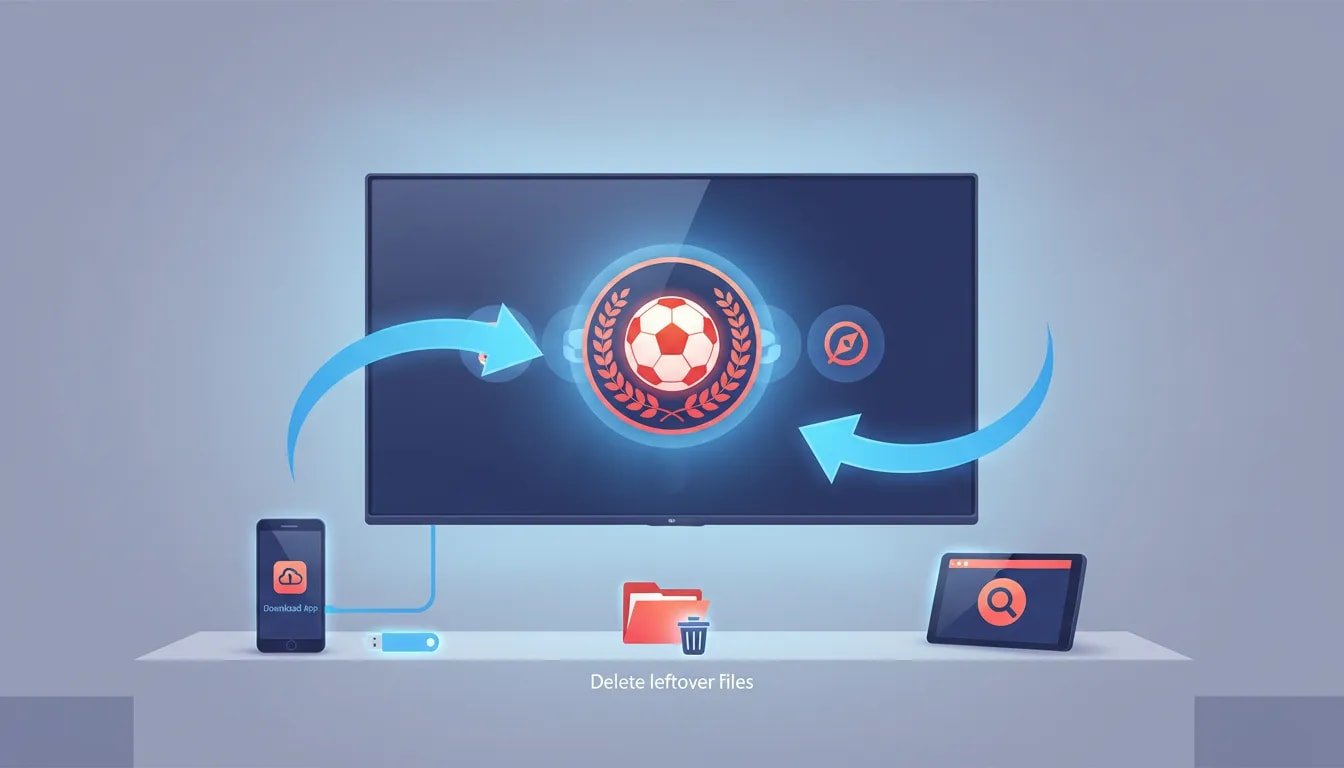
If you want to install Live Plus 2026 on your smart TV screen and run it properly, there are two simple ways to do it. You can either use the Downloader app or install it through the TV browser. I’ll also show you an important step many people ignore, which is deleting leftover installation files so the TV does not get slow, plus how to copy a backup of the app to your USB flash drive.
This guide is especially useful for Android TV and similar smart TV systems where apps do not always appear directly on the home screen after installation.
Table of Contents
- 📥 Method 1: Install Live Plus with Downloader
- 🧭 Why the app may not appear on the home screen
- 🌐 Method 2: Install Live Plus through the browser
- 📂 How to find the downloaded APK and install it manually
- 💾 How to take a backup copy of Live Plus on a USB flash drive
- ⚠️ Important notes before and after installation
- ❓FAQ
- ✅ Final result
📥 Method 1: Install Live Plus with Downloader
The easiest method is through the Downloader app. If Downloader is already installed on your TV, the process is very quick.
- Press the Home button on the remote.
- Open the Downloader app.
- Go to the search field at the top.
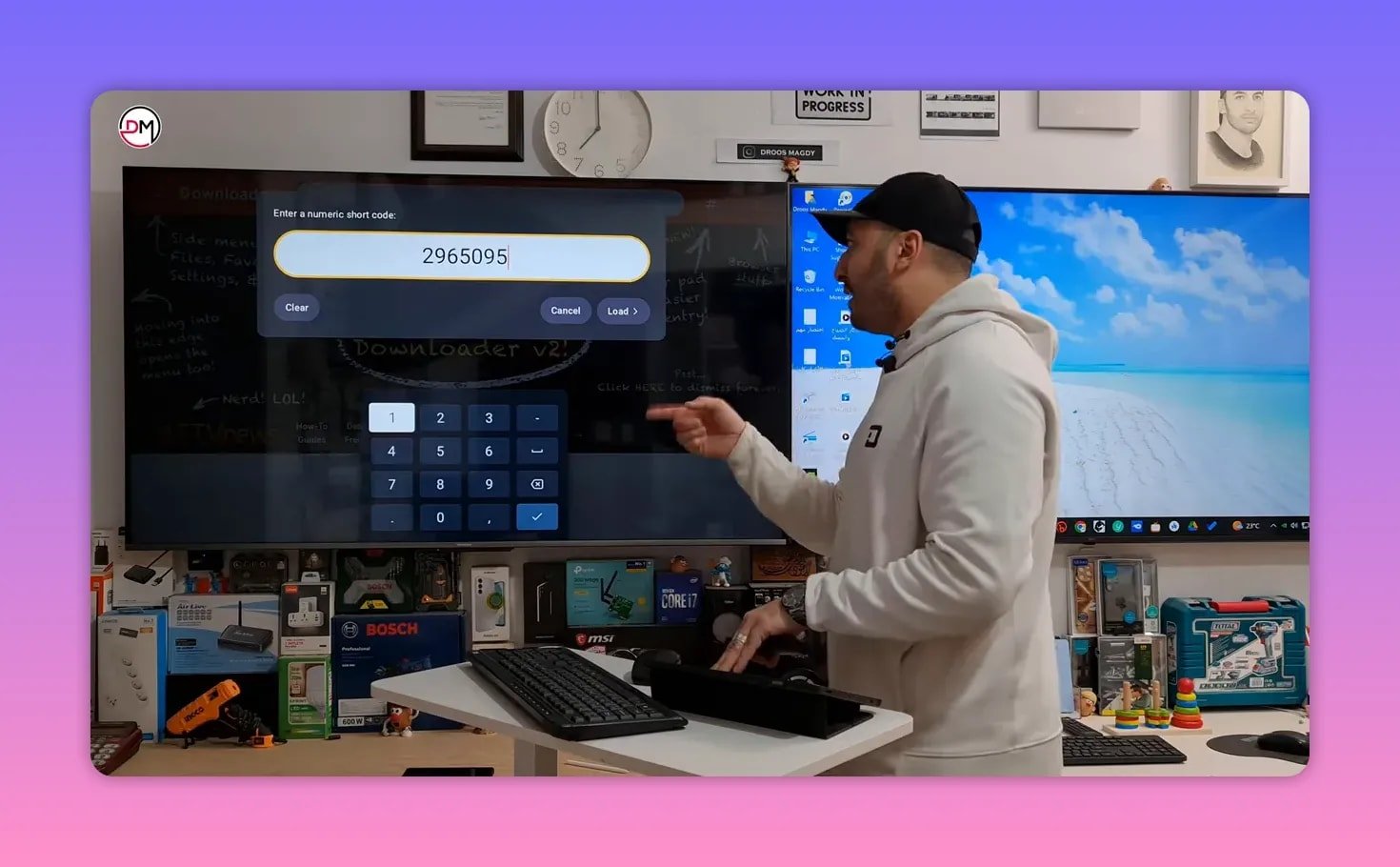
- Press the # icon to enter a numeric code.
- Type this code: 2965095
- Press Enter or the checkmark.
After that, wait about five seconds. There is no need to press anything during this short delay. The app will automatically redirect you to the download page.
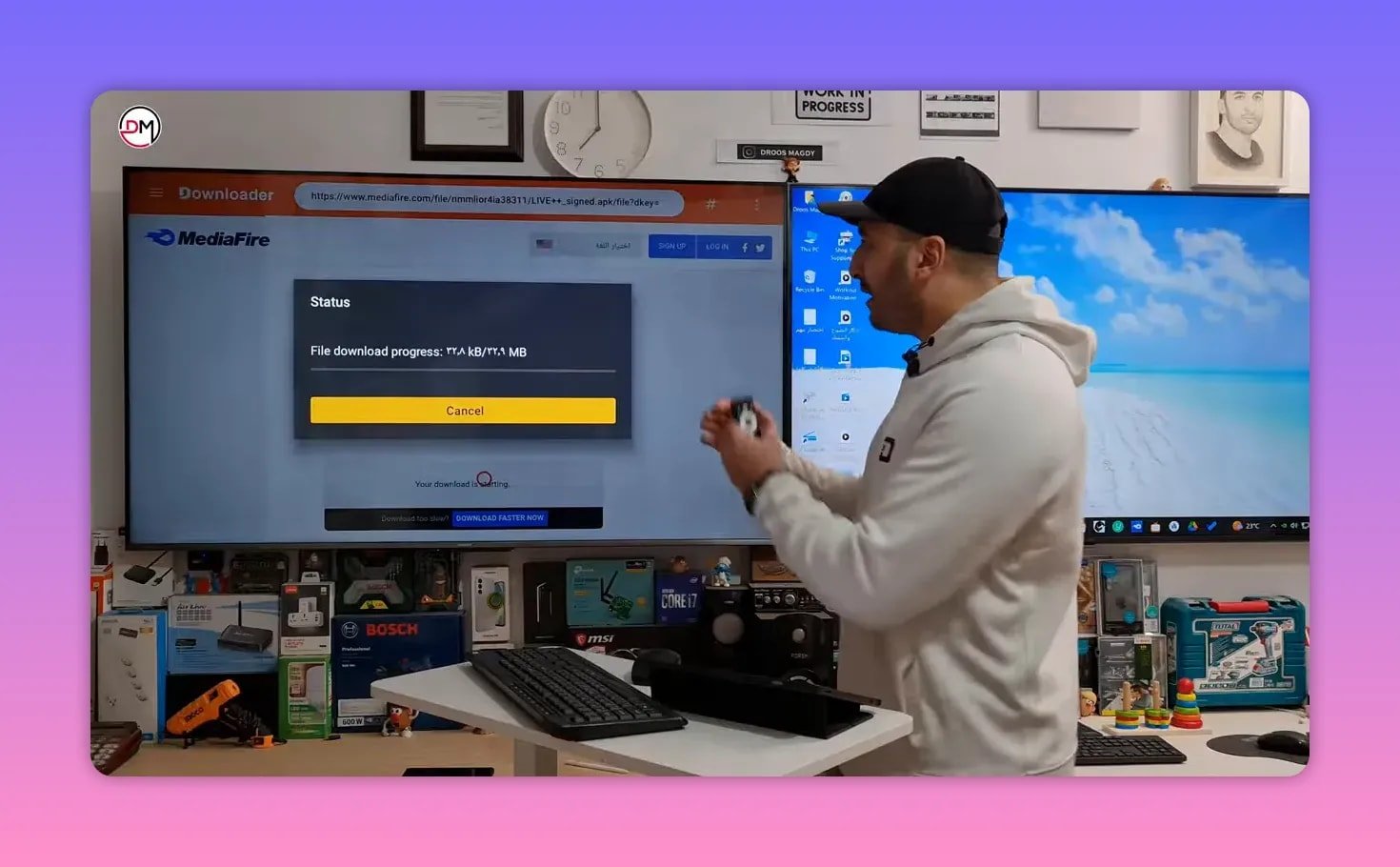
Once the page loads, stand on the download option and press OK. A message appears confirming that the download has started.
The app size is about 33 MB, so the download speed will depend on your internet connection.
Install or update the APK
When the APK finishes downloading, the installation screen appears.
- If Live Plus is already installed, you will see Update.
- If this is your first time installing it, you will see Install.
In both cases, choose the installation option and wait until the setup finishes.
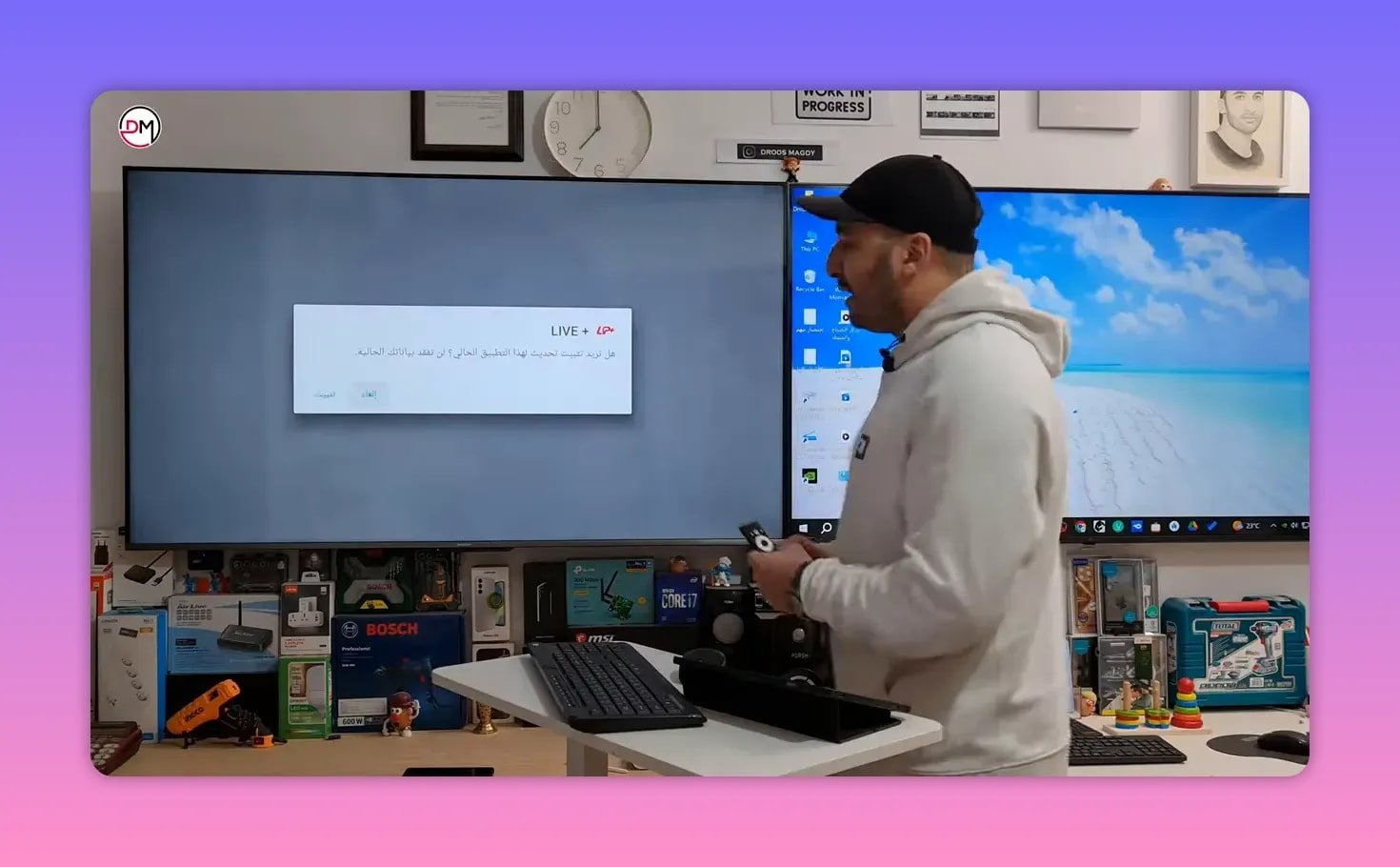
When the app is installed successfully, choose Done. Do not stop there. This next step matters.
Delete the APK after installation
After installation, Downloader gives you the option to delete the APK file. Choose Delete, then confirm Delete again.
This is not just about saving a little space. Temporary APK files can take up internal storage and, over time, contribute to lag and slower TV performance. Keeping the TV clean helps it stay responsive.
🧭 Why the app may not appear on the home screen
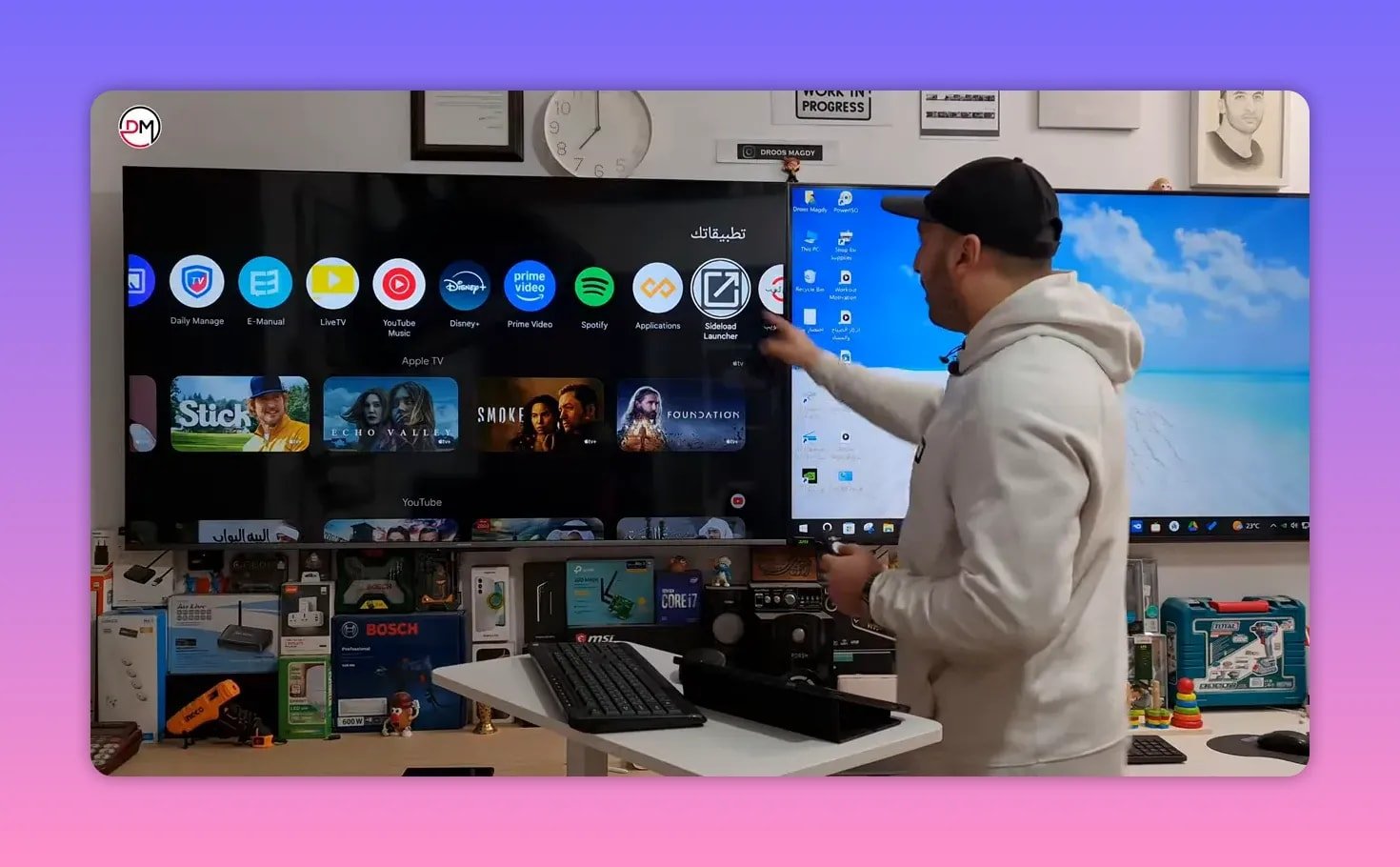
One thing that confuses many people is that after installation, the app may not show on the main home page. That does not mean the install failed.
In this case, you need a launcher app such as:
- Sideload Launcher
- Application Launcher
Open one of these tools and it will display the apps that were installed on the TV, including Live Plus.
If you regularly install apps manually on Android TV, browsing more Android TV installation guides here can make the process much easier.
🌐 Method 2: Install Live Plus through the browser
If you do not want to use Downloader, you can install the same app from any browser available on the TV.
Here is the exact format to use in the address bar:
aftv.news/2965095
- Press the Home button.
- Open any browser on the TV.
- Go to the search or address bar.
- Type: aftv.news/2965095
- Press Enter.
Again, wait the same five seconds for the redirect to complete. Then stand on the correct option, press OK, choose Open, and then Download.
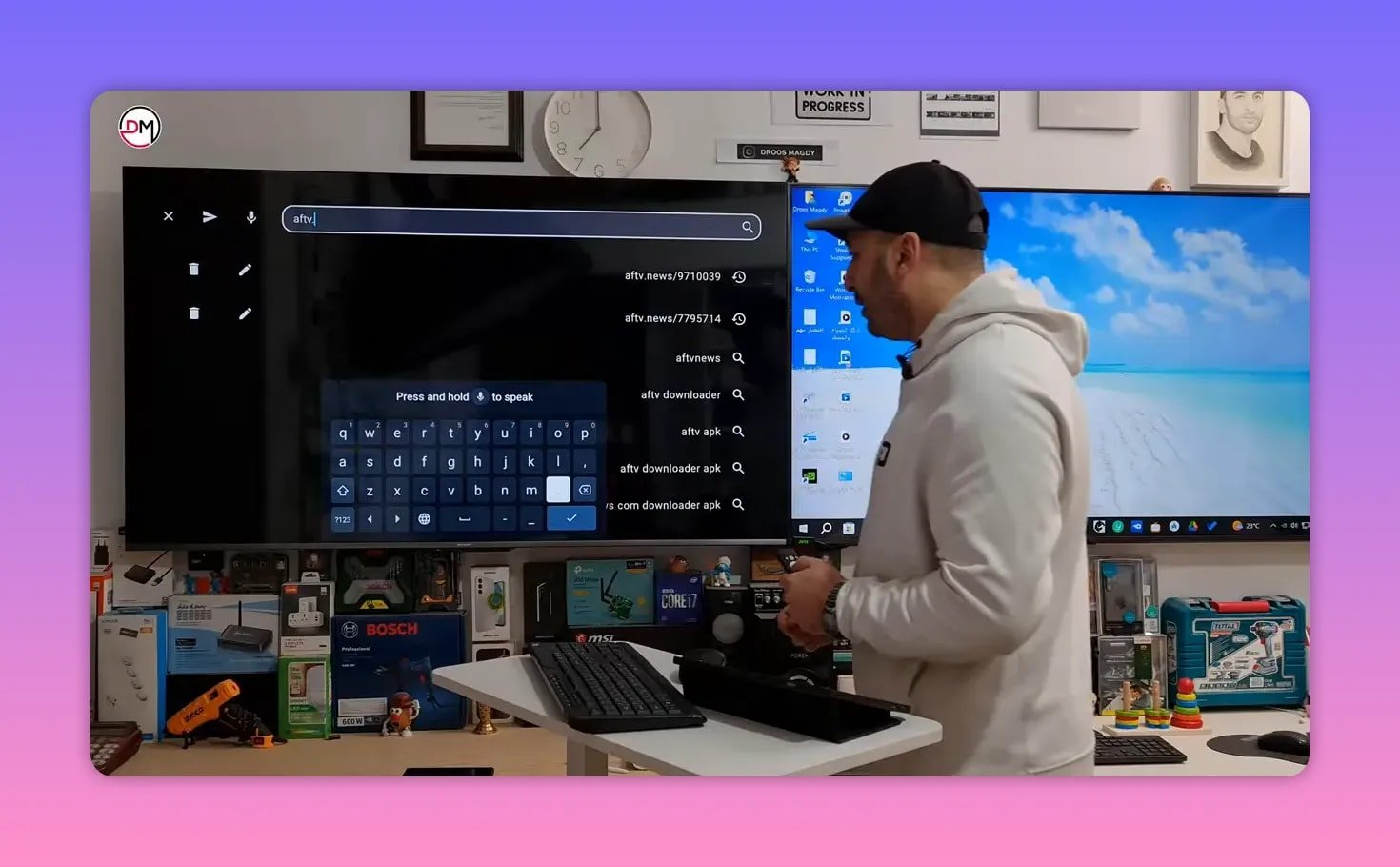
The download begins exactly like the Downloader method. Once it reaches 100%, the file is now on your TV.
This same browser formula can also help when installing other APKs manually. If you are comparing methods, this walkthrough on installing a streaming app on Smart TV and phone is another useful reference.
📂 How to find the downloaded APK and install it manually
After downloading through the browser, the app will not install itself automatically in every setup. You may need to open it through a file manager.
- Press Home.
- Open File Manager.
- Go to the Downloads folder.
- Find the Live Plus APK.
- Press once on the file.
You should then get options like:
- Install
- Update
- Cancel
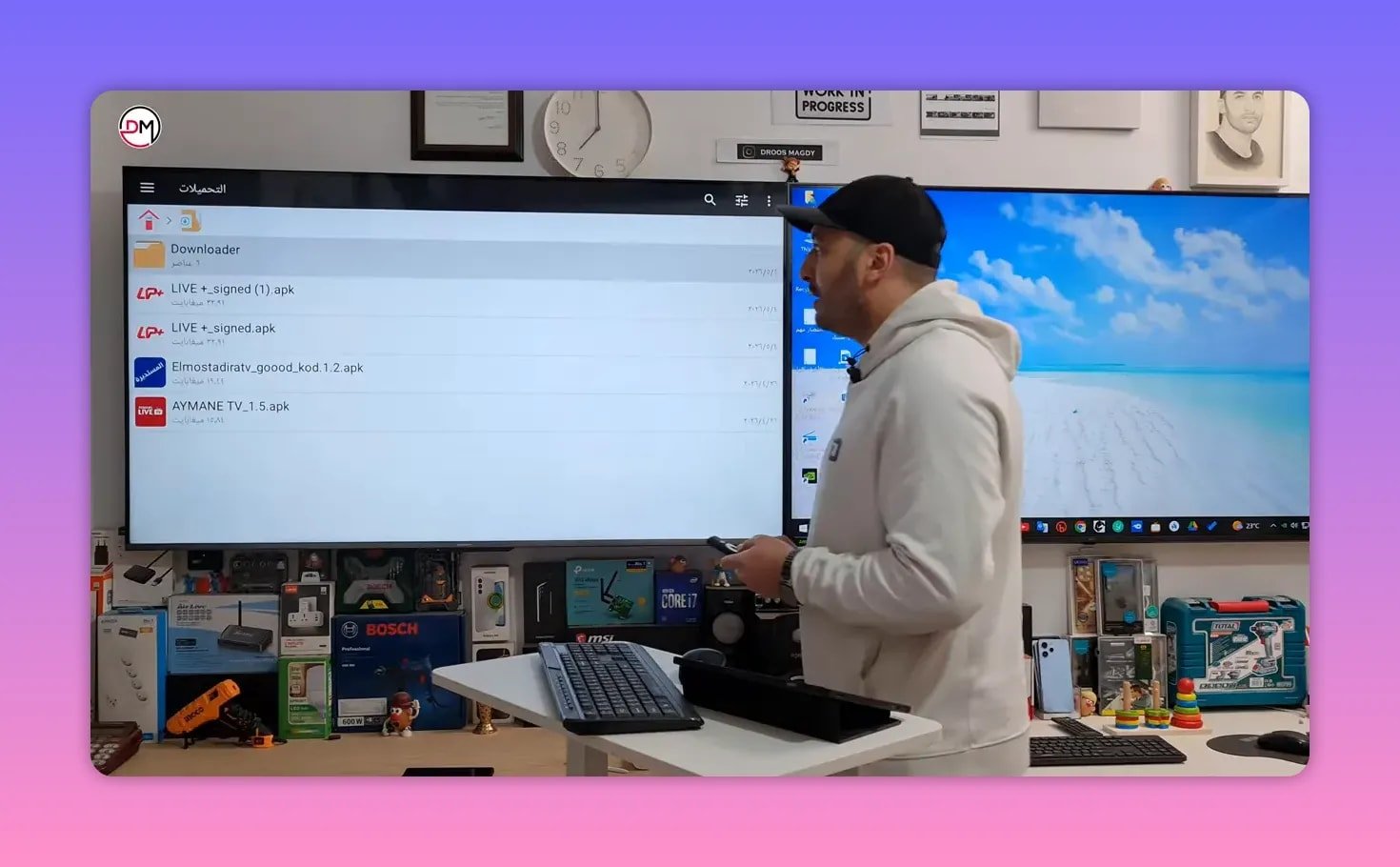
If your remote does not respond correctly on this screen, you may need to connect a mouse. That same advice applies inside the app as well. On some TV models, certain menus are much easier to control with a mouse than with the standard remote.
If you often deal with manual APK installation, Android TV’s official help pages from Google Android TV support can also help with system-level permissions and compatibility issues.
💾 How to take a backup copy of Live Plus on a USB flash drive
One of the most useful parts of this setup is creating a backup copy of the app on a flash drive. That way, if you ever reset the TV or want to install the same app on another device, you already have the APK ready.
Here’s how to copy it:
- Open the file manager.
- Stand on the app file.
- Press and hold to open the options menu.
- Choose Copy.
- Press Back on the remote.
- Open your USB flash drive.
- Enter any folder you want.
- Choose Paste.
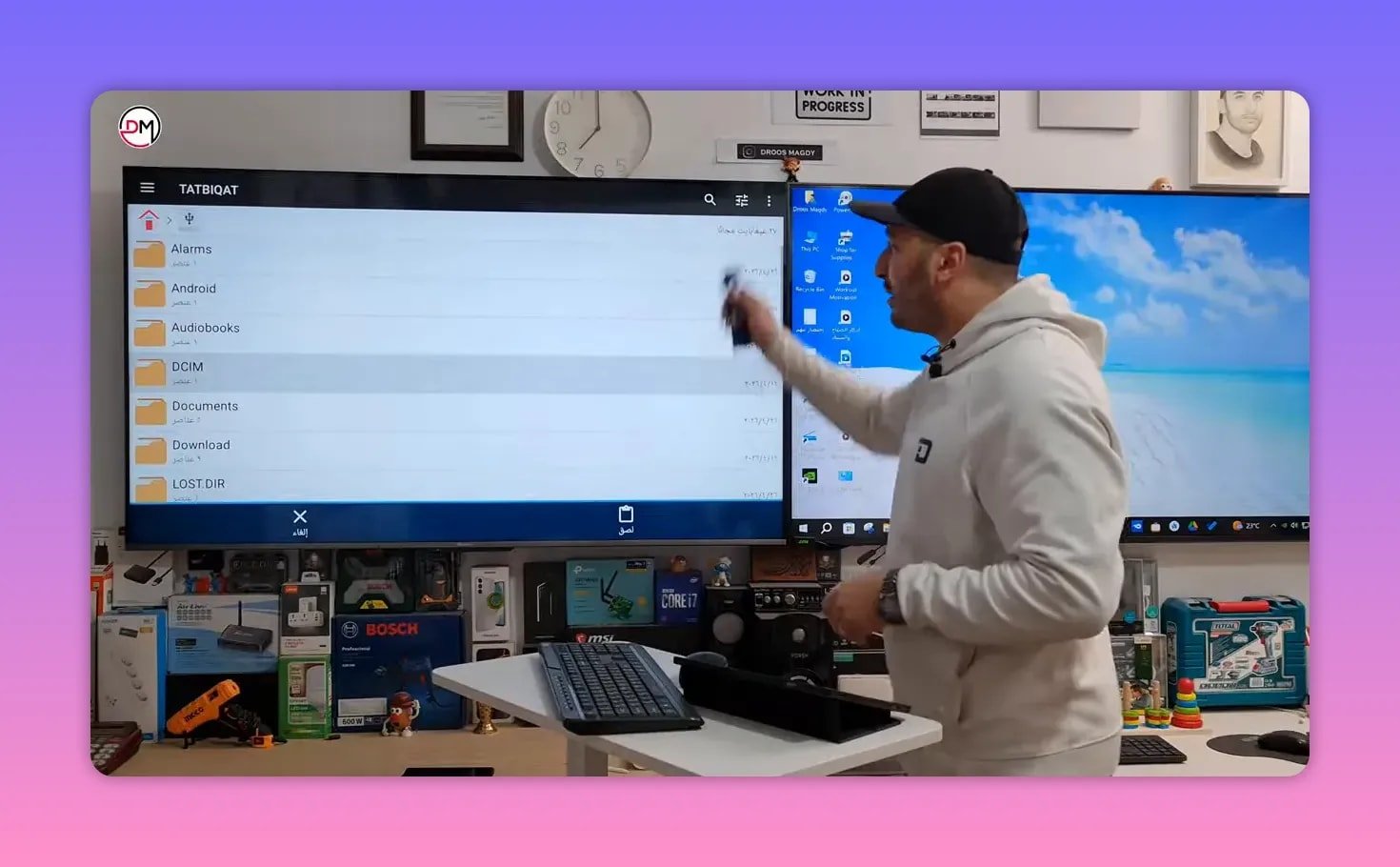
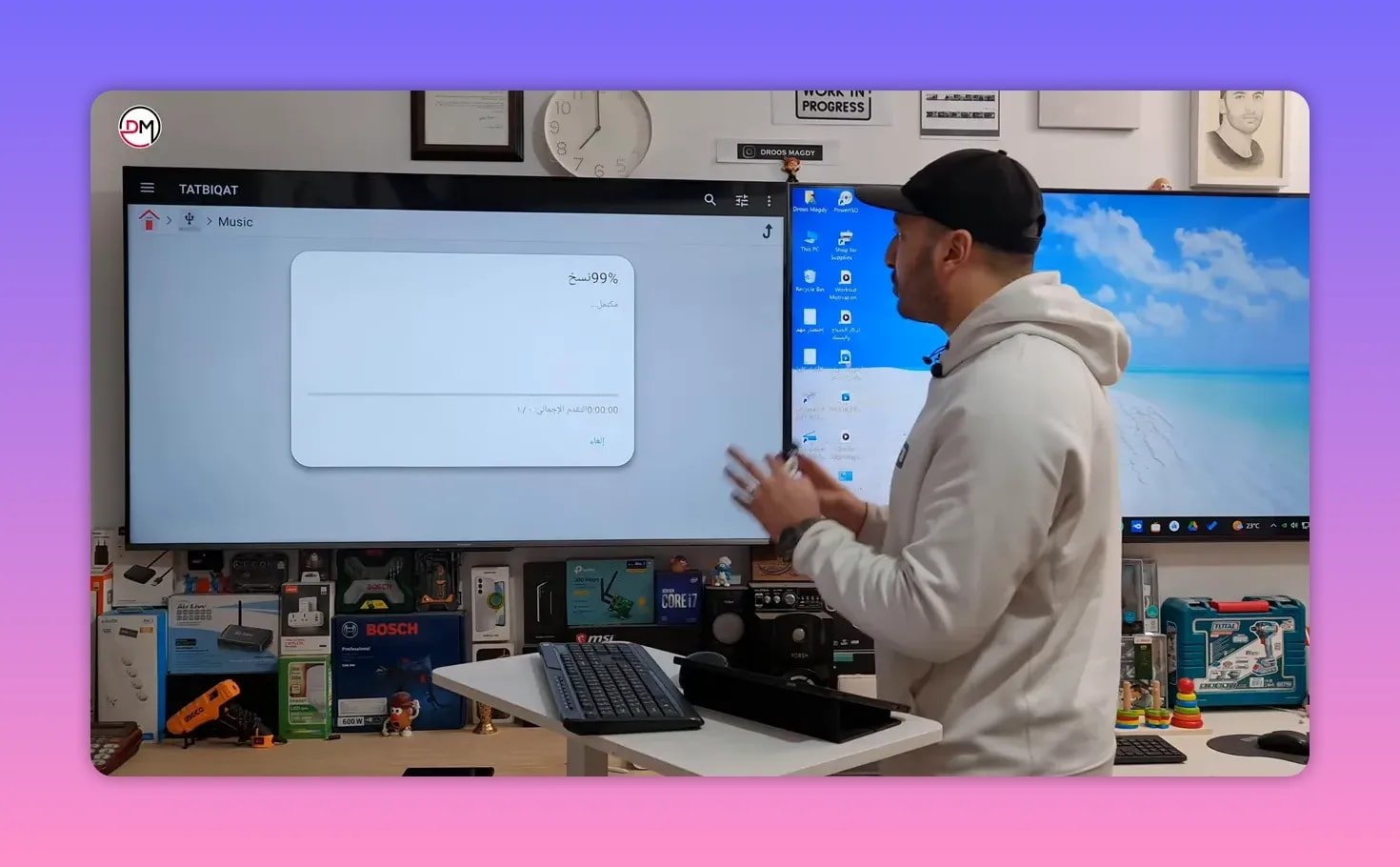
The TV will begin copying the APK from internal storage to the flash drive. Once the progress reaches 100%, your backup is ready.
⚠️ Important notes before and after installation
- Delete leftover APK files after installation whenever possible to avoid filling internal storage.
- If the app is already installed, the system may show Update instead of Install. That is normal.
- If the app does not appear on the home screen, open it through Sideload Launcher.
- If the remote stops responding in menus, use a mouse.
- If you download through the browser, use a file manager to locate the APK inside Downloads.
❓FAQ
What is the Downloader code for Live Plus 2026?
The code is 2965095.
What browser link should I use if I do not want to use Downloader?
Use aftv.news/2965095 in the TV browser address bar.
Why should I delete the APK after installing the app?
Because leftover installation files take up internal storage and can contribute to lag or slower TV performance over time.
Why can’t I find Live Plus on the TV home screen after installation?
Some manually installed apps do not appear on the main launcher. Use Sideload Launcher or a similar launcher app to open them.
What should I do if the remote does not work during installation?
Connect a mouse. Some installation prompts and in-app controls respond better with a mouse on certain TV models.
How do I make a backup of the app on a USB flash drive?
Use a file manager, press and hold on the app file, choose Copy, open the flash drive folder, then select Paste.
Can I use the same browser installation pattern for other apps?
Yes. The same format works with other apps when you have their specific code, using the pattern aftv.news/code. For example, some apps are also installed with short code methods such as this Downloader code installation guide.
✅ Final result
Installing Live Plus on smart TV 2026 is straightforward once you know the right path. If Downloader is available, use code 2965095. If not, type aftv.news/2965095 in the browser, download the APK, then install it from the Downloads folder.
And most importantly, clean up after installation, use a launcher if the app stays hidden, and keep a backup on your flash drive so you do not have to repeat the whole process later.