Prime TV is still one of the apps many people look for on smart screens, especially when they want a quick installation method that works with the latest update. If you want to install Prime TV version 2026 on your TV and activate it correctly, the process is simple as long as you follow the steps in order.
The important part here is not just installing the app. You also need to remove the old version first, use the correct Downloader code, clean up the leftover installation files, and enter the activation code the right way once the app opens.
Table of Contents
- 🛠️ Before installing Prime TV
- 📥 Open Downloader and enter the Prime TV code
- 📦 Download and install the app
- 🏠 Find Prime TV on the home screen
- 🔐 Enter the activation code
- ✅ The full Prime TV setup in short
- 💡 Small details that make a big difference
- 🔎 Extra help for TV app installation
- ❓ FAQ
🛠️ Before installing Prime TV
Before you download the latest Prime TV version, start by removing any older version already installed on the screen. This step matters. Installing over an old build can cause problems with opening the app, logging in, or loading content properly.
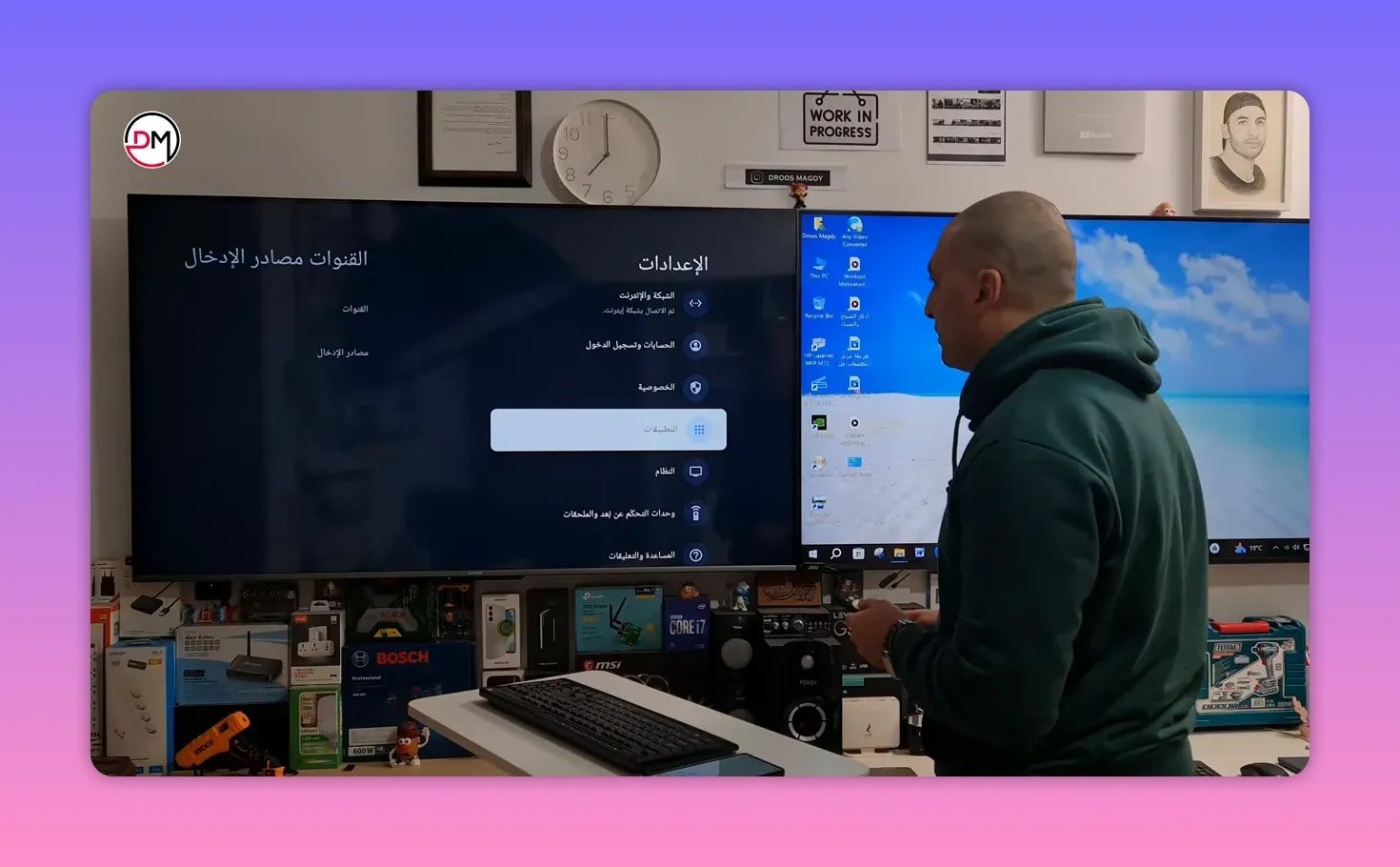
Here’s the path used on the TV settings menu:
- Open Settings from the remote.
- Choose All Settings.
- Scroll down to Applications.
- Find Prime TV.
- Select Uninstall.
- Confirm with OK.
Once the uninstall is complete, exit back out to the main screen.
📥 Open Downloader and enter the Prime TV code
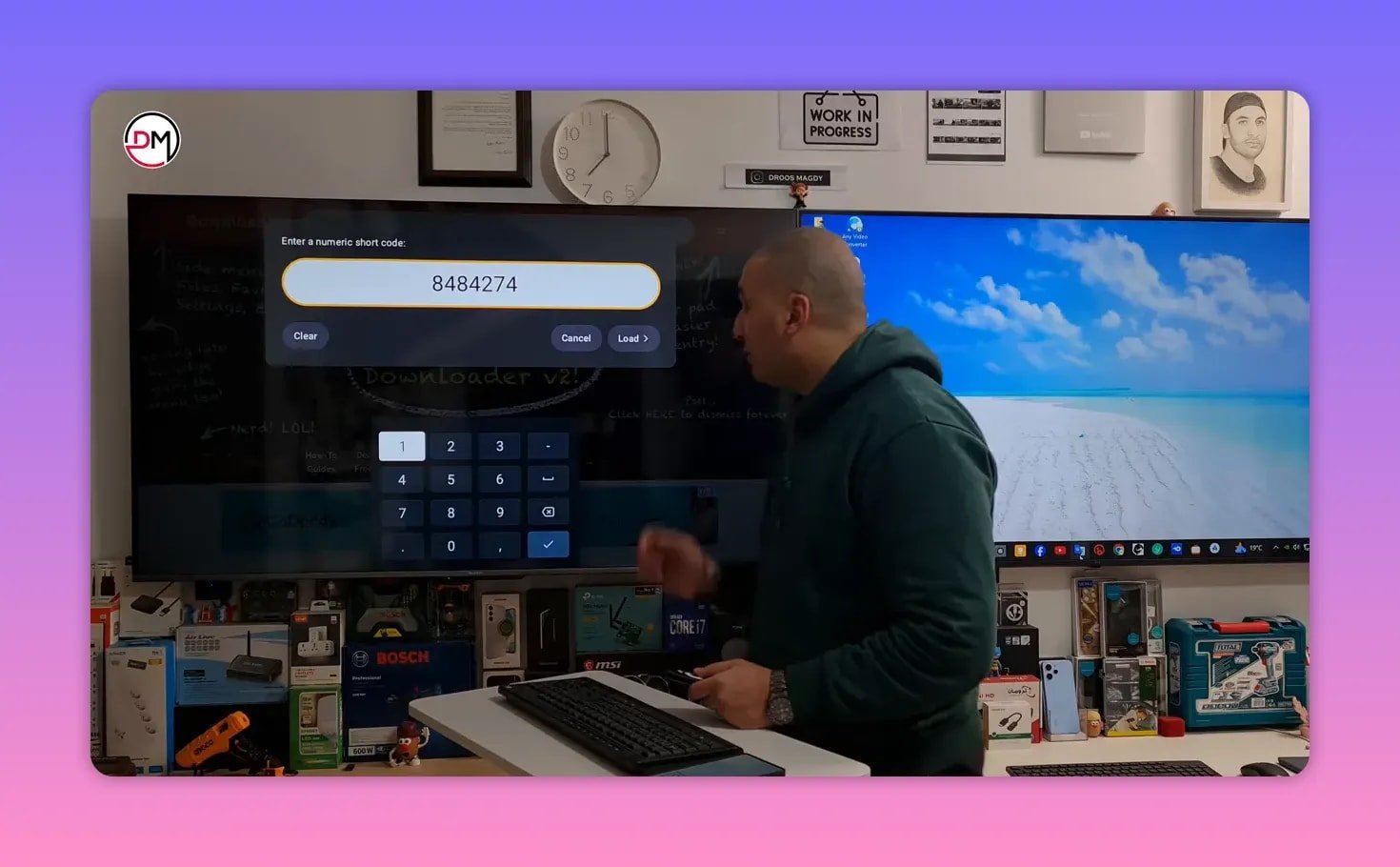
After removing the old version, open the Downloader app. If you have not used Downloader before, it helps to know that the newer interface gives you a full keyboard when you move to the search field in the middle and press OK.
If you only want the number pad, choose the # symbol first. That switches the keyboard to numbers only, which makes entering the code faster.
Enter this Downloader code exactly:
8484274
Then press the checkmark or Enter on the keyboard.
After that, wait about five seconds without pressing anything. The page will redirect automatically. Once the next page appears, move to the on-screen options and press OK to continue through the download prompts.
If you regularly install TV apps this way, this guide on installing an Android TV app via Downloader is also useful for understanding the general process.
📦 Download and install the app
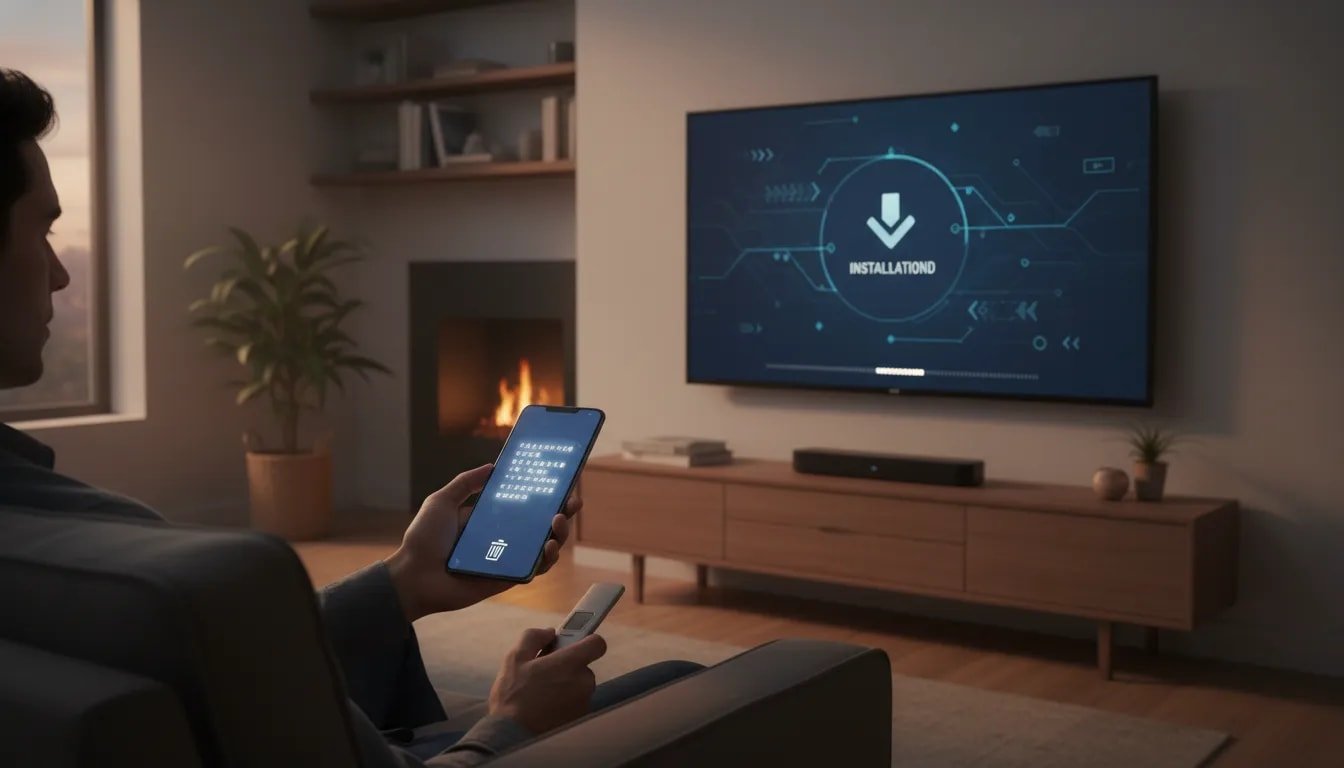
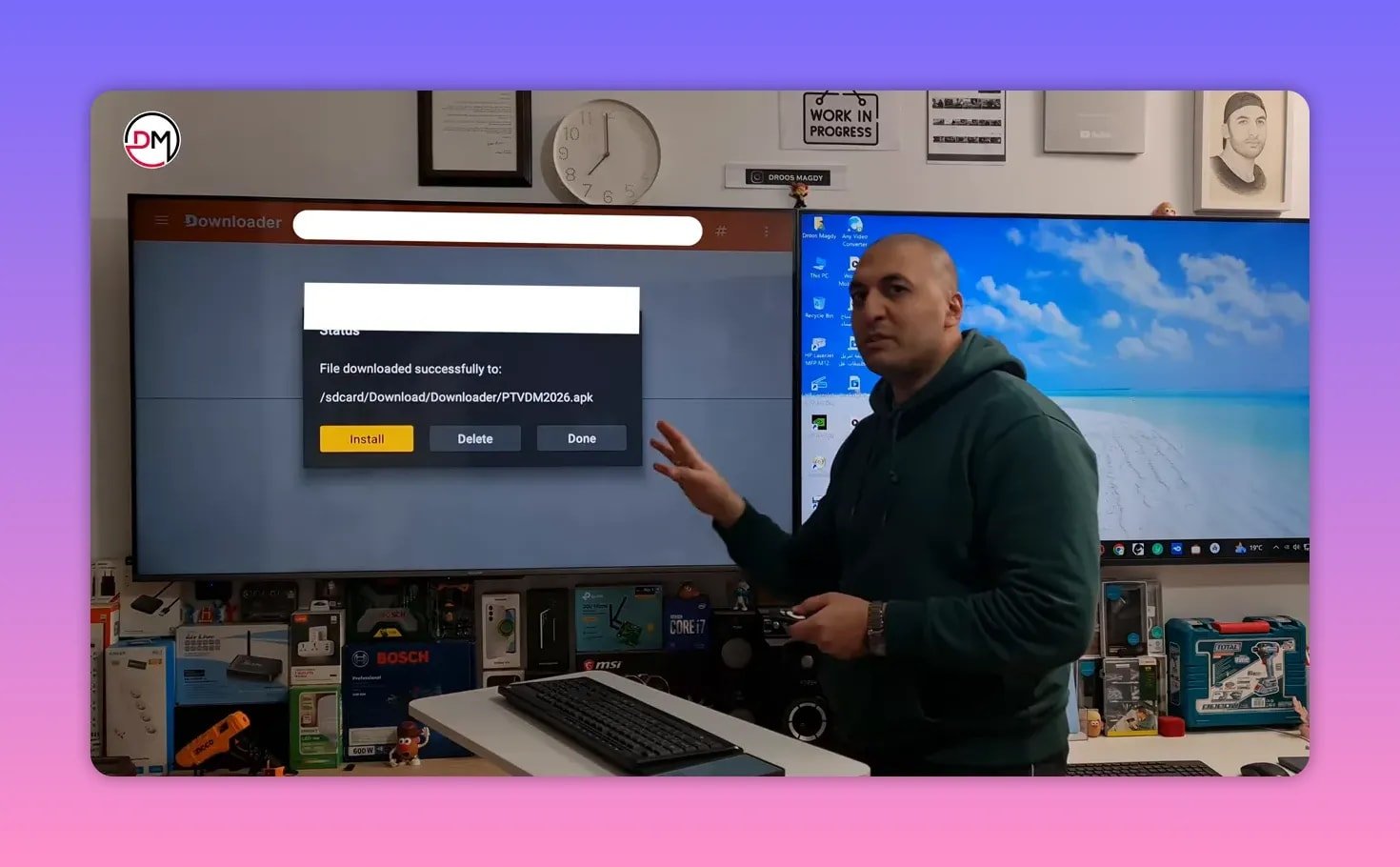
The Prime TV app file is around 17 MB, so the download time depends on your internet speed. Once the file finishes downloading, the TV will ask whether you want to install the application.
Choose Install.
When installation finishes, do not rush past the cleanup step. Press Done first, not Open.
This is where a lot of people skip an important detail. After installation, Downloader keeps the APK file unless you delete it manually. Those leftover files use internal storage and can contribute to lag or slow performance on some TVs.
So after pressing Done:
- Select Delete.
- Confirm Delete again.
That removes the installation package and keeps the screen cleaner and lighter.
🏠 Find Prime TV on the home screen
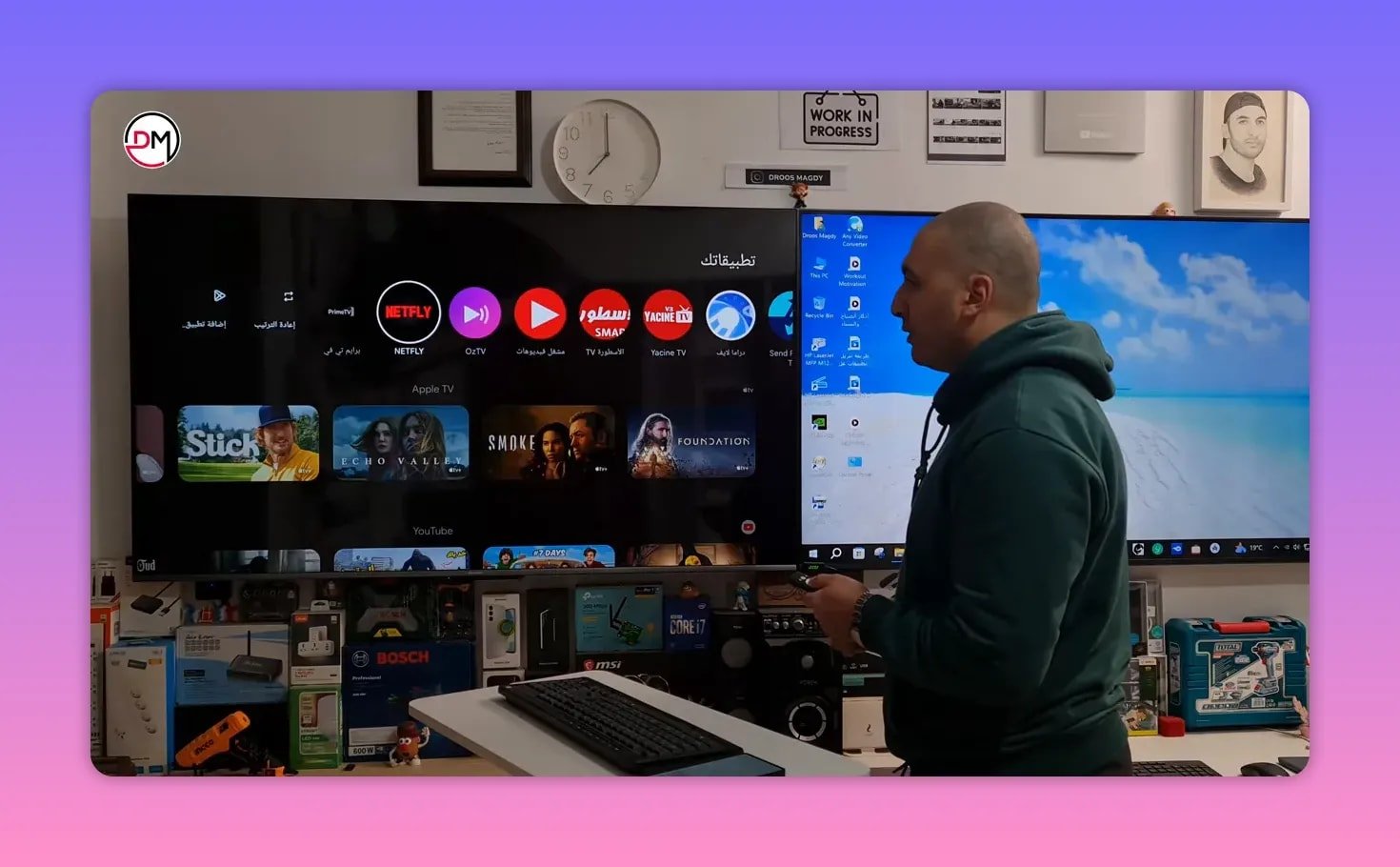
Now press the Home button on the remote and check whether Prime TV appears on the main screen. In many cases, it will show up toward the end of the apps row.
If you do not see it immediately, scroll across your installed applications until you find it.
🔐 Enter the activation code
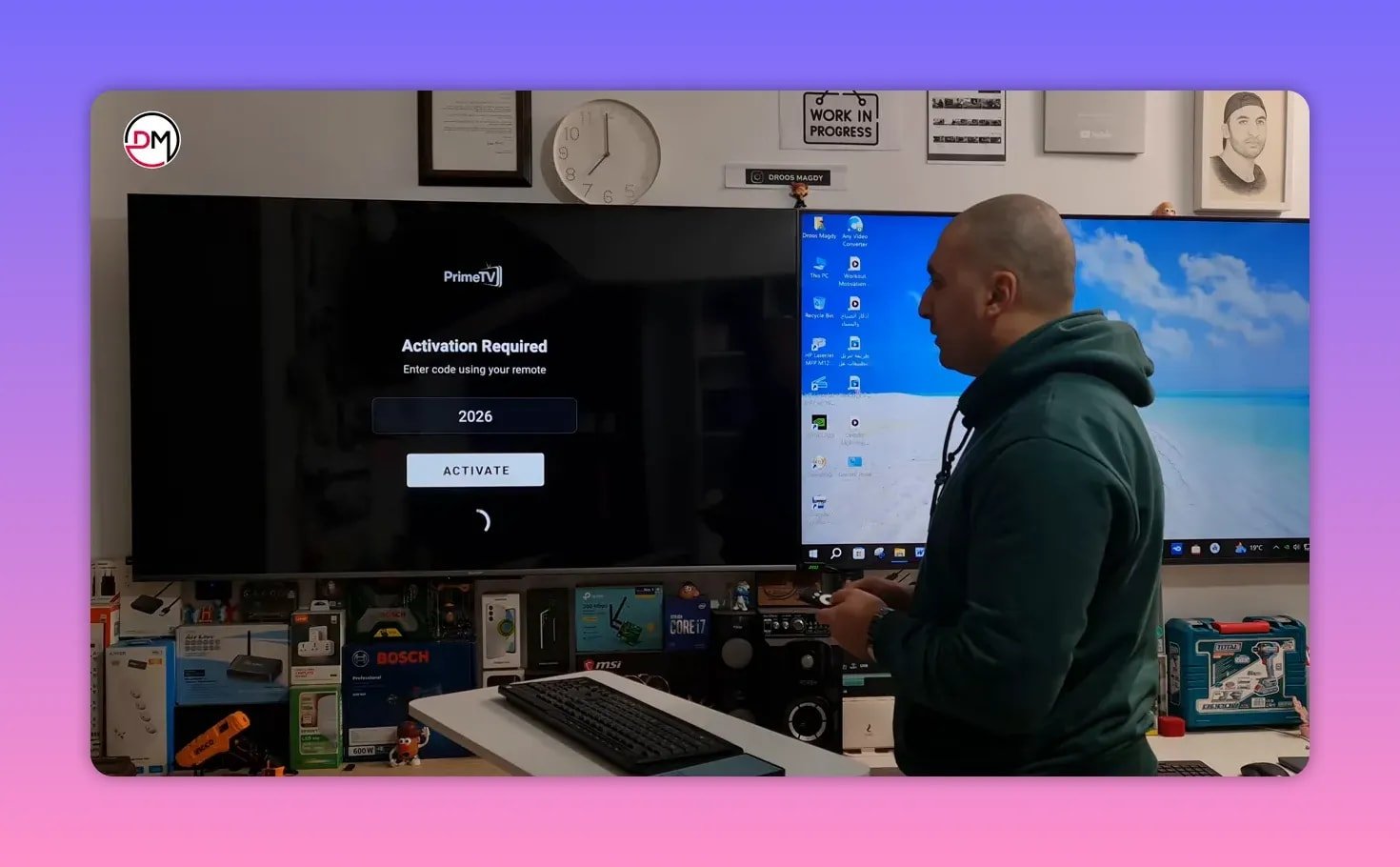
Open Prime TV and wait for it to load. If the app asks for a code, enter:
2026
Then press the checkmark or Enter on the keyboard, move down to the confirmation option, and press OK.
Once that is done correctly, the app logs in and opens normally. At that point, the sections inside Prime TV should work without any issue.
✅ The full Prime TV setup in short
If you want the quick version, this is the exact order:
- Delete the old Prime TV version from Applications.
- Open Downloader.
- Enter code 8484274.
- Wait for the redirect page.
- Continue the prompts and install the app.
- Press Done.
- Delete the leftover APK file.
- Return to Home and open Prime TV.
- Enter activation code 2026 if requested.
💡 Small details that make a big difference
A few simple points can save time and avoid problems during installation:
- Always uninstall the old version first. This reduces conflicts with the updated app.
- Use the exact Downloader code. A single wrong digit will take you somewhere else or fail entirely.
- Wait during the redirect. There is a short pause of a few seconds before the page changes.
- Delete the APK after installation. This helps preserve storage space and can reduce sluggishness.
- Use the correct activation code. For this version, the code is 2026.
If you like comparing similar app update methods, this related walkthrough on a Prime TV-like streaming app update using Downloader may help.
🔎 Extra help for TV app installation
If Downloader itself is not installed yet, you will need to set that up first before using the numeric code method. Downloader is commonly used on Android TV and Fire TV devices for direct APK installation. You can also read more about it on the official Downloader app resource page.
For broader Android TV guidance and app-related tutorials, resources from specialists in TV apps can also be helpful, such as Michael Turner – Professional Apps.
❓ FAQ
What is the Downloader code for Prime TV?
The Downloader code used here for Prime TV is 8484274.
What is the activation code for Prime TV?
If the app asks for an activation code after opening, enter 2026.
Do I need to uninstall the old version first?
Yes. Removing the older version of Prime TV first is one of the most important steps. It helps avoid installation conflicts and app errors.
Why should I delete the file after installation?
The APK installation file stays in storage unless you delete it. Removing it saves internal memory and can help prevent lag or slowdowns on the TV.
Where can I find Prime TV after installing it?
After installation, go back to the home screen. The app often appears near the end of the apps row if it is not pinned near the front.
What should I do if Prime TV does not open correctly?
Start over in the same order: uninstall the old version, reinstall using the correct Downloader code, and enter the activation code exactly as shown. Also make sure the APK file was deleted only after installation completed successfully.
Prime TV installation is straightforward when the steps are followed in the right order. Remove the old app, install the latest version through Downloader, clean up the leftover file, then activate with the proper code. That is the whole method, simple and clean.